VMware ESXiVirtualizationvMotionVMware vSphere

Article & Tutorial

VMware vMotion Explained: Live VM Migration Without Downtime

Understand how vMotion moves a running virtual machine between ESXi hosts, including prerequisites, migration phases, compatibility, networking, storage, encryption, and troubleshooting.

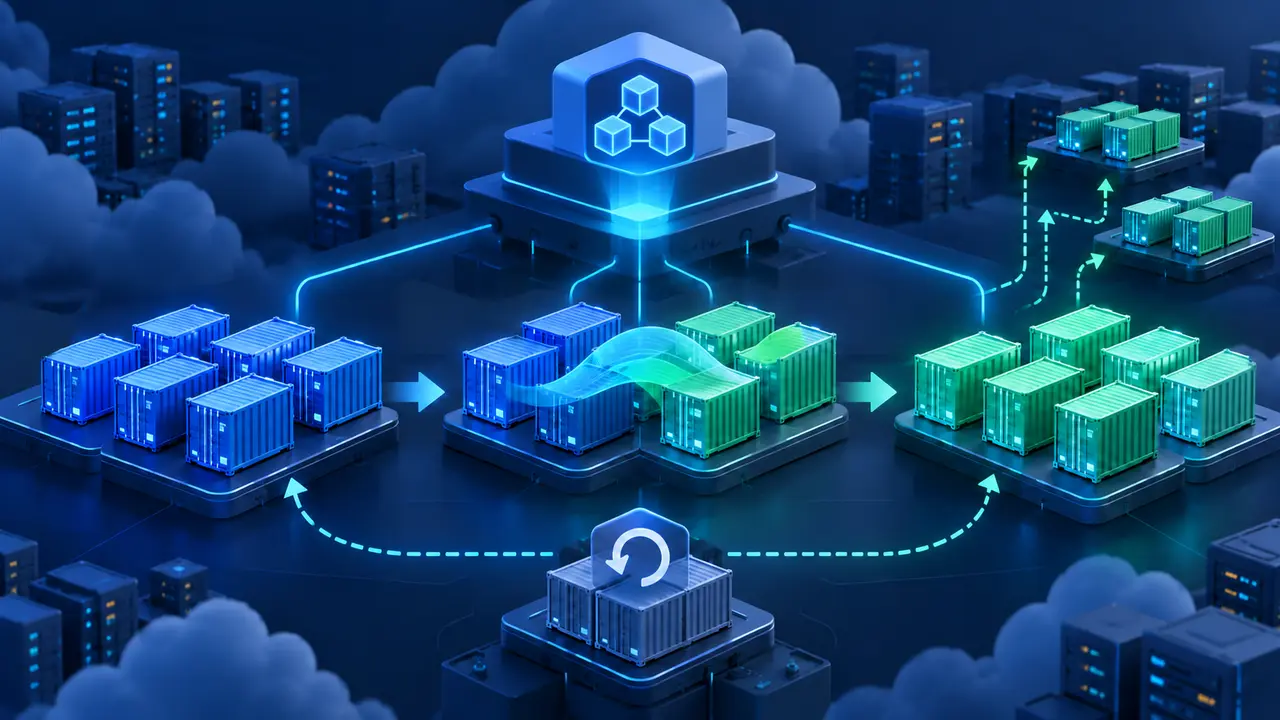
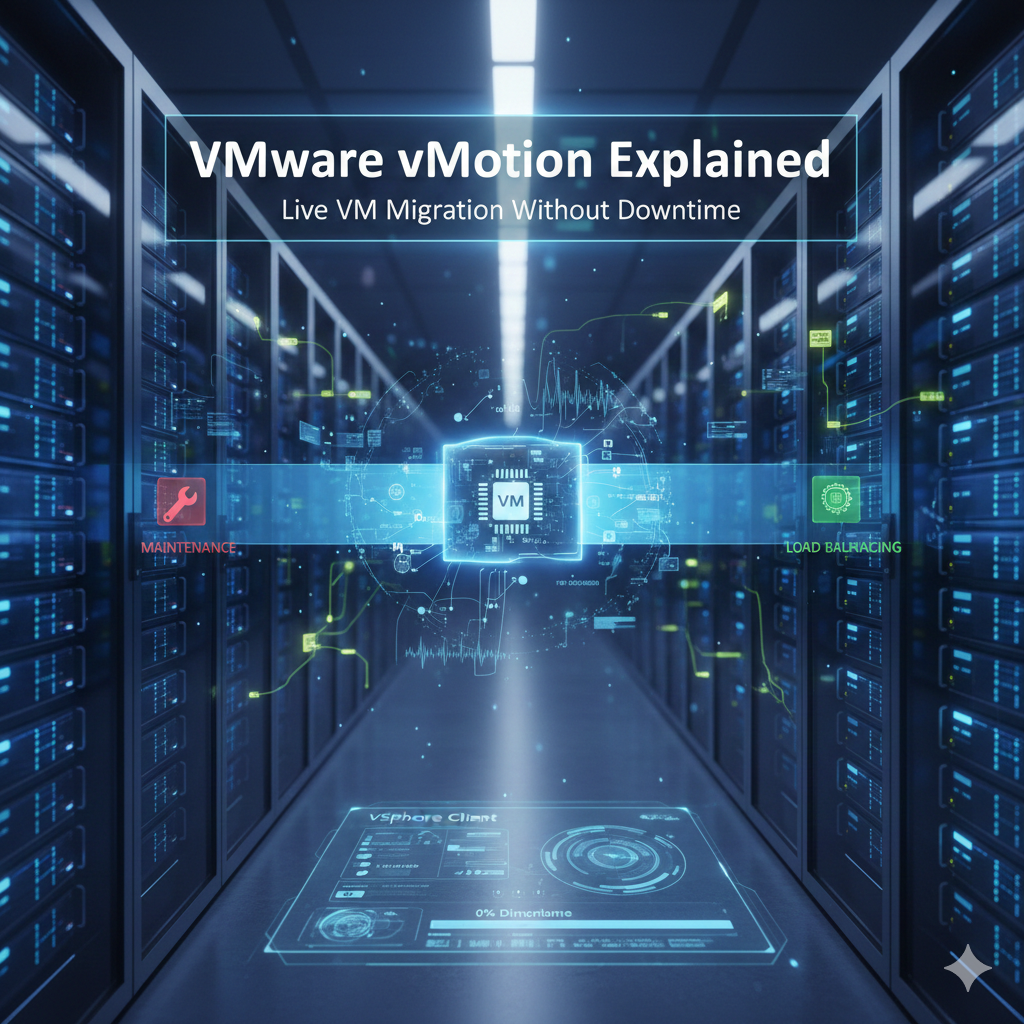
Virtual machine migrating live between two VMware ESXi hosts
Contents

vMotion moves the active compute state of a virtual machine from one ESXi host to another while the guest continues running. It supports maintenance and workload balancing by preserving the VM’s network identity and minimizing service interruption.

What moves during a standard migration

The destination host receives the VM configuration and a progressively synchronized copy of memory while changed pages are tracked. During a brief switchover, execution is transferred to the destination and networking is updated. Virtual disks normally remain on shared storage unless storage migration is also selected.

Core prerequisites

  • Source and destination hosts are managed in a compatible vSphere environment.
  • A working VMkernel interface is enabled for vMotion on each host.
  • Hosts have reliable, appropriately sized network connectivity for migration traffic.
  • The destination can access required datastores or a combined compute-and-storage migration is supported.
  • CPU compatibility is satisfied directly or through Enhanced vMotion Compatibility.
  • The destination provides compatible port groups, switches, and policy settings.
  • The VM has no device or configuration that blocks live migration.

vMotion, Storage vMotion, and combined migration

OptionMoves compute stateMoves virtual disks
vMotionYesNo
Storage vMotionNoYes
Combined migrationYesYes

Migration phases

  1. vCenter performs compatibility checks.
  2. The destination prepares the VM execution context.
  3. Memory pages are copied while the source VM continues running.
  4. Changed pages are copied in additional passes.
  5. The VM pauses briefly and final state is transferred.
  6. Execution resumes on the destination and the source state is released.

Network and security considerations

Use a dedicated or isolated vMotion network, provide redundancy, and protect migration traffic according to the environment’s sensitivity. Encrypted vMotion can protect data in transit on supported configurations. Confirm MTU consistently across the full path before enabling jumbo frames.

Common migration failures

SymptomLikely area
Compatibility check failsCPU, device, datastore, or network mismatch
Migration stalls or is slowBandwidth, packet loss, latency, or memory churn
Destination network unavailableMissing or inconsistent port group
Authentication or host errorManagement state, certificates, or services
Insufficient resourcesDestination CPU, memory, or admission control

Operational practice

Test live migration before a maintenance event, monitor vMotion bandwidth, standardize host networking, keep firmware and supported versions aligned, and verify that backups and monitoring continue after the move. A successful task does not replace application-level health checks.

VMware vSphere documentation

Did this help?

Yes No

Join the discussion

0 Comments

Ask questions, add context, or share what worked.

Sign in to join the discussion

No comments yet. Start the discussion.

More from Melochip Editorial

Related articles

Stay in the loop. Get new Melochip articles

Receive Melochip article updates when new articles are available. Explicit opt-in only.

No pre-checked boxes. Unsubscribe support is part of the subscriber foundation.