Kubernetes Kubernetes Basics

Article & Tutorial

Create an Azure Linux VM: Portal, CLI, SSH Keys and Security Best Practices

Create an Azure Linux VM using the Azure portal or Azure CLI with SSH keys, Standard public IPs, NSG guidance, verification, troubleshooting, and cleanup steps.

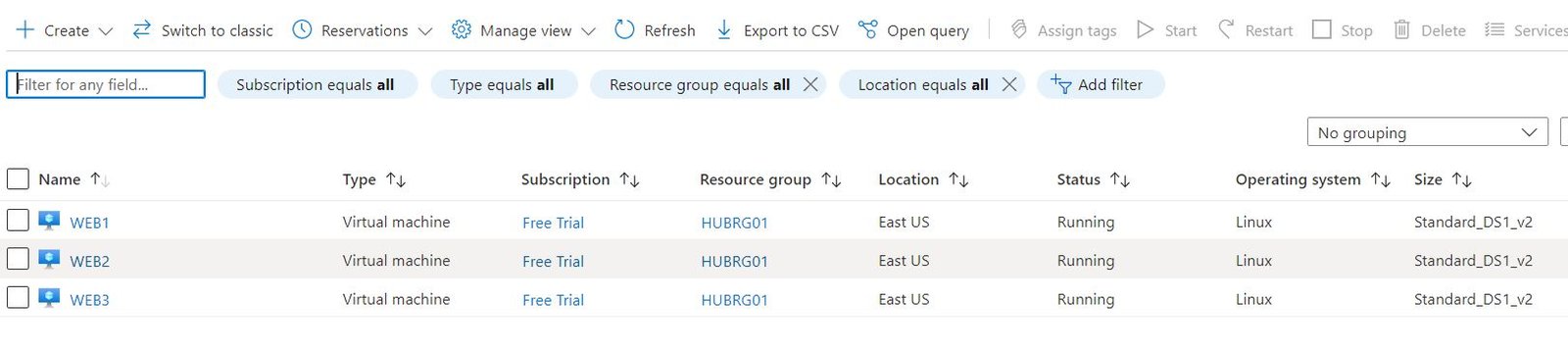
Azure virtual machines displayed in the Azure portal
Contents

Last reviewed: August 2026

This guide shows how to create a Linux virtual machine in Microsoft Azure using both the Azure portal and Azure CLI, with current security practices such as SSH keys, Standard public IPs, NSGs, and clean-up guidance.

Prerequisites

  • An Azure subscription
  • Permission to create resource groups, virtual machines, networking resources, and public IPs
  • Azure CLI or Azure Cloud Shell if you want to use commands

Create a Linux VM in the Azure portal

  1. Open Azure portal → Virtual machines → Create → Azure virtual machine.
  2. Select the subscription and resource group.
  3. Provide a VM name and region.
  4. Choose an image such as Ubuntu Server 22.04 LTS Gen2 or another supported image for your workload.
  5. Select an appropriate VM size.
  6. For Linux authentication, select SSH public key instead of a reusable administrator password.
  7. Use a username such as azureuser.
  8. Generate a new key pair or use an existing SSH key stored in Azure.
  9. Under inbound ports, allow only the ports you actually need, such as SSH 22 and HTTP 80 for a test web server.
  10. Review disk, networking, management, monitoring, and advanced settings.
  11. Select Review + create, validate the configuration, and create the VM.

Connect to the VM with SSH

chmod 400 ~/Downloads/myKey.pem ssh -i ~/Downloads/myKey.pem azureuser@Create a VM with Azure CLIRG=melochip-vm-rg LOCATION=eastus VM=melochip-web01 USER=azureuser az group create --name $RG --location $LOCATION az vm create --resource-group $RG --name $VM --image Ubuntu2204 --admin-username $USER --generate-ssh-keys --public-ip-sku StandardYou can also use a full image URN for stricter control over the publisher, offer, SKU, and version.

Create a VM inside an existing VNet and subnet

az vm create --resource-group HUBRG01 --name WEB1 --image Ubuntu2204 --location eastus --vnet-name HUBVNET01 --subnet HUBSUBNET01 --admin-username azureuser --generate-ssh-keys --public-ip-sku StandardIf the VM must remain private, omit public exposure and use Azure Bastion, VPN, ExpressRoute, or another approved private-access method.

Check VM status and IP addresses

az vm show --resource-group $RG --name $VM --show-details --output table az vm list-ip-addresses --resource-group $RG --name $VM --output tableNSG and security guidanceDo not hard-code administrator passwords in scripts or articles.Prefer SSH-key authentication for Linux VMs.Limit SSH or RDP source IP ranges whenever possible.Do not open management ports to the entire internet unless absolutely necessary.Use NSGs, guest firewalls, and least privilege together.For production systems, consider Azure Bastion or private connectivity instead of a public management IP.Enable monitoring, patching, backup, and Defender recommendations as required by your environment.Availability optionsAzure offers multiple resiliency options depending on region and workload design, including availability zones, availability sets, and virtual machine scale sets. For new architectures, choose the option that matches your availability requirement rather than automatically placing every VM into an availability set.

Install NGINX for a quick test

sudo apt update sudo apt install -y nginx sudo systemctl enable --now nginxIf HTTP port 80 is allowed in the NSG, browse to the VM's public IP to confirm the web server is reachable.

Common problems

  • SSH connection fails: verify the public IP, NSG rule, username, private-key path, and guest firewall.
  • VM creation fails: check regional quota, SKU availability, image availability, policy restrictions, and permissions.
  • No public IP: confirm whether your design intentionally created a private VM.
  • Wrong image: use az vm image list or a full image URN to verify the exact image.
  • High cost: resize, stop/deallocate when unused, enable auto-shutdown, or delete the resource group after testing.

Clean up the lab

az group delete --name $RG --yes --no-waitDeleting the resource group removes the VM and the related resources created inside that resource group, so use this only when the lab is no longer needed.

Official references

  • Create a Linux VM in the Azure portal
  • Create a Linux VM with Azure CLI
  • Create and manage SSH keys with Azure CLI

Related Melochip guide: Azure Load Balancer.

Azure Load Balancer

Did this help?

Yes No

Join the discussion

0 Comments

Ask questions, add context, or share what worked.

Sign in to join the discussion

No comments yet. Start the discussion.

More from Melochip Editorial

Related articles

Stay in the loop. Get new Melochip articles

Receive Melochip article updates when new articles are available. Explicit opt-in only.

No pre-checked boxes. Unsubscribe support is part of the subscriber foundation.