
Windows Disk ManagementSpanned VolumesStorageWindows

Article & Tutorial

Windows Spanned Volumes: Setup, Risks and Recovery

Understand Windows spanned volumes, their failure risks, current dynamic-disk limitations, safe setup steps, monitoring, backup and recovery options.

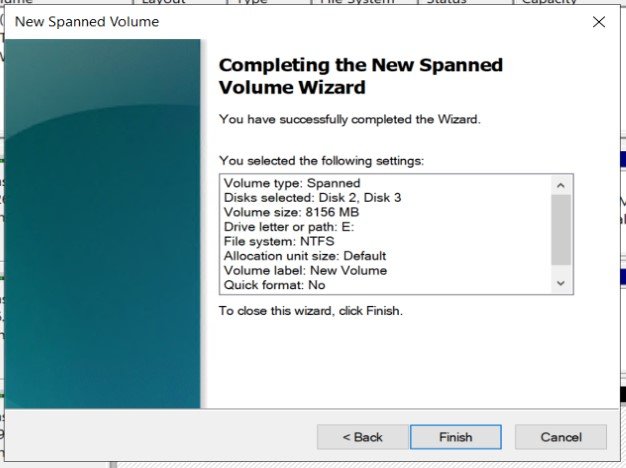
Windows Disk Management showing disks used for a spanned volume
Contents

Last reviewed: September 2026

A Windows spanned volume combines unallocated space from two or more dynamic disks into one logical volume. Windows fills available extents across the participating disks, but the layout provides no redundancy.

Important: dynamic disks are deprecated for most new deployments. Microsoft recommends newer storage technologies for new designs. Treat an existing spanned volume as legacy storage and plan migration rather than expansion whenever practical.

When a spanned volume may still appear

  • An existing legacy Windows server already uses dynamic disks.
  • A temporary lab combines spare capacity and the data is disposable.
  • A migration requires short-term access to a previously created dynamic volume.

When not to use one

  • Boot or operating-system storage.
  • Databases, virtual machines or the only copy of important data.
  • Any workload requiring fault tolerance or predictable recovery.
  • A new deployment where Storage Spaces, hardware RAID or managed cloud storage is available.

Compare Windows volume layouts

LayoutData placementRedundancyTypical purpose
SpannedUses extents across two or more disksNoCombine capacity
StripedWrites blocks across multiple disksNoIncrease throughput
MirroredWrites identical data to two disksYesSurvive one-disk failure
Storage Spaces mirrorPools disks and stores multiple copiesYesModern resilient Windows storage

Safety checks before changes

  • Create and test a backup stored outside the affected disks.
  • Confirm disk health and review storage-related events.
  • Record disk numbers, sizes, serial numbers, volume labels and drive letters.
  • Verify that applications and backup software support dynamic volumes.
  • Schedule downtime and define a rollback or restore path.
  • Never experiment on the only copy of data.

Create a spanned volume in Disk Management

Use these steps only when maintaining a justified legacy configuration. Creating the volume can convert selected basic disks to dynamic disks, which changes compatibility and recovery behavior.

  1. Open Disk Management with diskmgmt.msc.
  2. Confirm that at least two non-system disks contain unallocated space.
  3. Right-click unallocated space and select New Spanned Volume.
  4. Add the intended disks and specify the amount from each disk.
  5. Assign a drive letter or mount path.
  6. Format the volume with the required file system and a clear label.
  7. Verify volume status, capacity and read/write access.
  8. Run and document a restore test before placing data on the volume.

Inventory disks and volumes with PowerShell

inspect-storage.ps1
Get-Disk
Get-PhysicalDisk
Get-Volume
Get-Partition

These commands are read-only inventory checks. Match disk numbers and sizes with the physical or virtual disks before any storage change. Do not run destructive disk commands until the target and backup are independently verified.

How a disk failure affects the volume

Every participating disk is part of the same logical volume. If one disk fails or becomes unavailable, the file system and files across the span can become inaccessible. Replacing a failed disk does not rebuild the missing data because a span has no redundant copy.

For a failed or degraded span, stop writes, preserve the remaining disks, record their order and identifiers, and restore from a tested backup. If no backup exists and the data is valuable, avoid reinitializing disks or recreating the volume; consult a qualified recovery specialist.

Backup and monitoring

  • Keep at least one tested backup outside the spanned volume.
  • Monitor disk health, controller alerts and Windows storage events.
  • Use clear labels and maintain a map of every participating disk.
  • Test recovery after configuration or application changes.
  • Document recovery time and recovery point objectives.
  • Migrate important workloads to a supported resilient storage design.

Common mistakes

  • Assuming combined capacity also provides protection.
  • Extending the only copy of important data without a verified backup.
  • Converting disks without checking application and recovery-tool compatibility.
  • Removing, reinitializing or changing one participating disk.
  • Confusing a spanned volume with a mirrored or parity layout.
  • Keeping a legacy span simply because it has not failed yet.

Recommended alternatives

For a new Windows deployment, evaluate Storage Spaces with mirror or parity resiliency, a hardware RAID controller, or managed cloud disks. Select the design according to capacity, performance, fault tolerance, rebuild behavior, recovery objectives and operational support.

Official references

Convert a disk type to Dynamic or Basic

Basic and Dynamic Disks

Use the Disk Management snap-in

Did this help?

Yes No

Join the discussion

0 Comments

Ask questions, add context, or share what worked.

Sign in to join the discussion

No comments yet. Start the discussion.

More from Melochip Editorial

Related articles

Stay in the loop. Get new Melochip articles

Receive Melochip article updates when new articles are available. Explicit opt-in only.

No pre-checked boxes. Unsubscribe support is part of the subscriber foundation.