How to Install Rust and Cargo, Compile Code, and Run Rust Programs: Complete Beginner Guide
Learn how to install Rust and Cargo on macOS, Linux, and Windows, compile and run Rust programs, create Cargo projects, add dependencies, test, lint, and build optimized release binaries with practical examples.
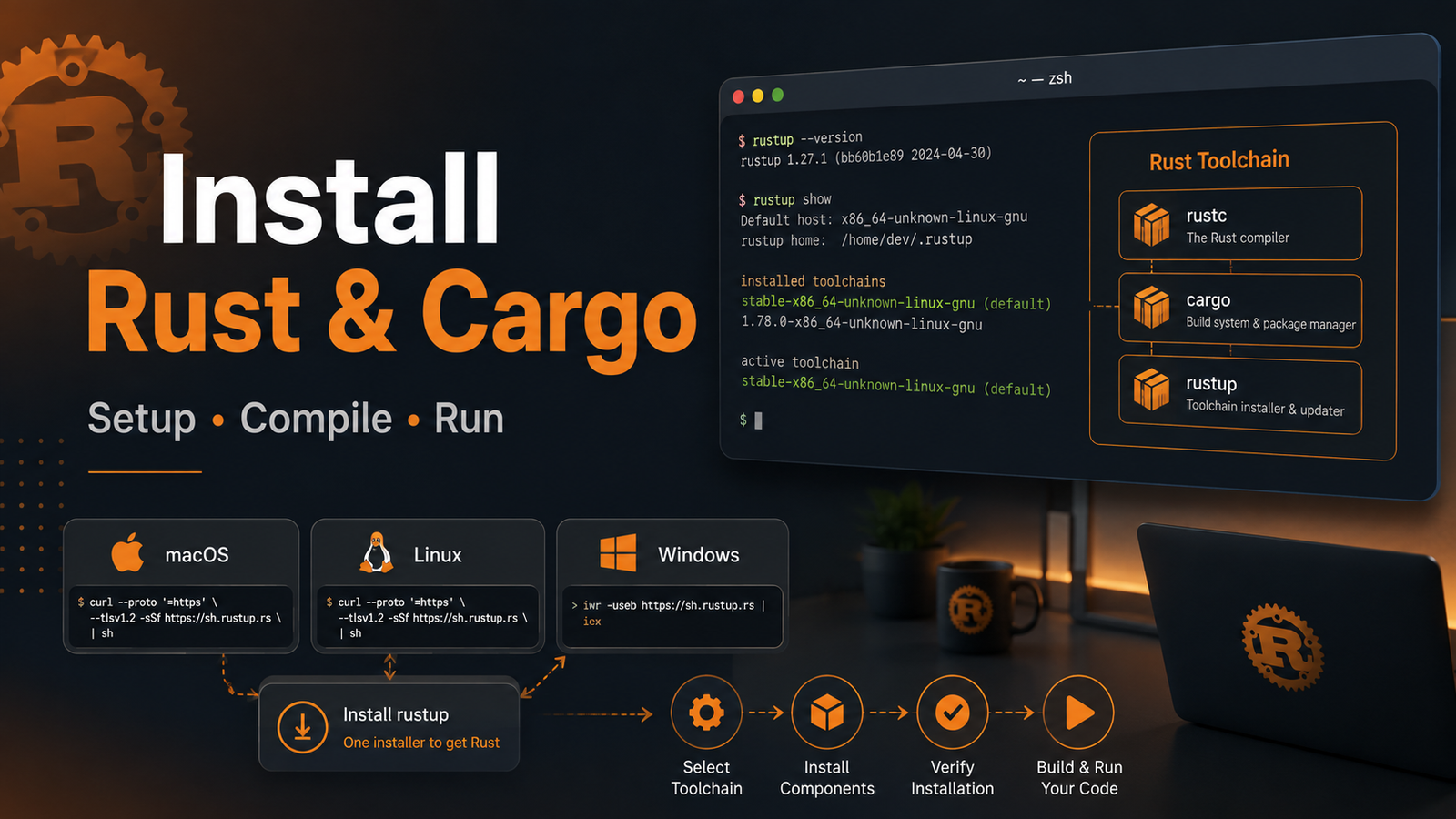
How to Install Rust and Cargo, Compile Code, and Run Rust Programs: Complete Beginner Guide article illustrationContents
Rust is a modern systems programming language designed for performance, reliability, and memory safety. Whether you want to build command-line tools, backend APIs, embedded software, WebAssembly applications, or operating-system components, the first step is understanding the Rust toolchain: rustup, rustc, and Cargo.
This hands-on guide takes you from a clean machine to a working Rust project. You will install Rust on macOS, Linux, and Windows, create a Cargo project, compile and run programs, add dependencies, build release binaries, write tests, use formatting and linting tools, and troubleshoot common setup problems.
Table of Contents
Understanding Rust, rustc, rustup, and Cargo
Prerequisites
Install Rust on macOS
Install Rust on Linux
Install Rust on Windows
Verify the installation
Compile your first Rust program with rustc
Create a project with Cargo
Important Cargo commands
Add dependencies
Practical Rust example
Testing, formatting, and Clippy
Build a production release
Update or uninstall Rust
Troubleshooting
FAQ
1. Understanding Rust, rustc, rustup, and Cargo
These names appear together frequently, but each tool has a different job.
Tool
Purpose
Example
Rust
The programming language and ecosystem.
fn main() { ... }
rustc
The Rust compiler. It converts Rust source code into native machine code.
rustc main.rs
Cargo
Rust's package manager and build system. It builds, runs, tests, documents, and manages dependencies.
cargo run
rustup
Installs and manages Rust toolchains, versions, targets, and components.
You do not need another programming language to start learning Rust. However, Rust programs are commonly linked using platform-native linker tools, so make sure your operating system has the normal development/build tools installed.
macOS prerequisite
Install Apple's Command Line Tools if they are not already available:
bash
xcode-select --install
Ubuntu/Debian prerequisite
bash
sudo apt update sudo apt install build-essential
Fedora/RHEL-family prerequisite
bash
sudo dnf group install "Development Tools"
Windows prerequisite
The standard MSVC Rust toolchain requires Microsoft C++ build tools. The Rust installer can guide you when these prerequisites are missing. Installing the Desktop development with C++ workload from Visual Studio Build Tools is the usual option for the MSVC toolchain.
3. Install Rust and Cargo on macOS
Open Terminal and run the official rustup installer:
bash
curl --proto '=https' --tlsv1.2 -sSf https://sh.rustup.rs | sh
Follow the interactive prompts. For most users, the default installation is the correct choice.
After installation, either open a new Terminal window or load the Cargo environment into the current shell:
bash
source "$HOME/.cargo/env"
Rust's executable tools are normally made available through $HOME/.cargo/bin.
4. Install Rust and Cargo on Linux
On most Linux distributions, the recommended Rust installation method is also rustup:
bash
curl --proto '=https' --tlsv1.2 -sSf https://sh.rustup.rs | sh
Then reload your shell or run:
bash
source "$HOME/.cargo/env"
Using rustup is generally preferable to relying on an older Rust compiler from a distribution repository because it makes stable toolchain updates, targets, and components much easier to manage.
5. Install Rust and Cargo on Windows
On Windows, visit the official Rust installation page and download rustup-init.exe. Run it and follow the prompts.
If the installer reports that Visual Studio C++ build tools are required, install them and then run rustup again.
After setup, open a new PowerShell or Command Prompt window and verify that Rust is on your PATH.
6. Verify the Rust Installation
Check the compiler:
bash
rustc --version
Check Cargo:
bash
cargo --version
Check rustup:
bash
rustup --version
You can also inspect the active toolchain:
bash
rustup show
If all commands return version/toolchain information, the basic environment is ready.
7. Compile Your First Rust Program Directly with rustc
Cargo is the normal choice for real projects, but compiling a tiny program directly with rustc is useful because it shows what the compiler itself does.
Create a file named hello.rs:
bash
fn main() { println!("Hello from Rust!"); }
Compile it:
bash
rustc hello.rs
On macOS/Linux, run the resulting executable:
bash
./hello
On Windows:
bash
.\hello.exe
Expected output:
bash
Hello from Rust!
The important concept is:
bash
hello.rs ── rustc ──> native executable ──> run
8. Create Your First Rust Project with Cargo
For normal development, use Cargo rather than invoking rustc manually.
Create a new project
bash
cargo new hello_rust cd hello_rust
Cargo creates a standard project layout similar to:
bash
hello_rust/ ├── Cargo.toml └── src/ └── main.rs
Cargo.toml is the project manifest. It stores package metadata, dependencies, feature configuration, and other Cargo settings.
The generated src/main.rs contains a working Hello World program:
bash
fn main() { println!("Hello, world!"); }
Build the project
bash
cargo build
The default debug binary is placed under:
bash
target/debug/
Run the project
bash
cargo run
cargo run compiles the project when necessary and then starts the executable.
Check code without creating the final executable
bash
cargo check
cargo check is often faster than a full build during development because it checks the package and dependencies for compilation errors without completing final code generation.
9. Important Cargo Commands
Command
What it does
cargo new app
Create a new Cargo package.
cargo init
Turn an existing directory into a Cargo package.
cargo check
Quickly check code for compilation errors.
cargo build
Compile a debug build.
cargo run
Build when needed and run the program.
cargo test
Compile and run tests.
cargo build --release
Create an optimized release build.
cargo clean
Remove generated build artifacts.
cargo fmt
Format Rust source code.
cargo clippy
Run additional lints and code-quality checks.
cargo doc --open
Build project/dependency documentation and open it.
cargo tree
Display the dependency tree.
10. Add a Dependency with Cargo
Rust libraries and packages are commonly called crates. Cargo resolves dependencies declared in Cargo.toml, with crates.io being the default public registry.
For example, using Cargo's add command:
bash
cargo add rand
This updates your manifest with a compatible dependency entry. You can inspect the file:
bash
cat Cargo.toml
On Windows PowerShell:
bash
Get-Content Cargo.toml
Cargo also maintains Cargo.lock, which records exact dependency versions selected for a reproducible build.
11. Practical Example: Number Guessing Starter
Here is a small example that reads a value from standard input and demonstrates variables, input handling, parsing, matching, and error handling.
bash
use std::io; fn main() { println!("Enter a number:"); let mut input = String::new(); io::stdin() .read_line(&mut input) .expect("Failed to read input"); let number: i32 = match input.trim().parse() { Ok(value) => value, Err(_) => { println!("Please enter a valid integer."); return; } }; println!("You entered: {number}"); println!("Double value: {}", number * 2); }
Replace the contents of src/main.rs and run:
bash
cargo run
Example:
bash
Enter a number: 21 You entered: 21 Double value: 42
12. Testing, Formatting, and Clippy
Rust tooling encourages useful checks to be part of the normal development workflow.
Add a unit test
Replace src/main.rs with:
bash
fn add(a: i32, b: i32) -> i32 { a + b } fn main() { println!("2 + 3 = {}", add(2, 3)); } #[cfg(test)] mod tests { use super::*; #[test] fn adds_two_numbers() { assert_eq!(add(2, 3), 5); } }
Run the tests:
bash
cargo test
Format the code
bash
cargo fmt
Run Clippy
bash
cargo clippy
A useful local validation routine is:
bash
cargo fmt --check cargo clippy cargo test cargo build
13. Build an Optimized Production Release
During development, cargo build creates a debug profile. For a performance-optimized binary, use:
bash
cargo build --release
The release executable appears under:
bash
target/release/
You can run it directly on macOS/Linux:
bash
./target/release/hello_rust
Windows:
bash
.\target\release\hello_rust.exe
Build type
Command
Output directory
Typical use
Debug
cargo build
target/debug
Development and debugging
Release
cargo build --release
target/release
Optimized production binary
14. Useful rustup Commands
rustup is more than the installer. It manages toolchains and optional components.
bash
# See installed/active toolchains rustup show # Update Rust toolchains rustup update # Install the stable toolchain rustup toolchain install stable # Make stable the default rustup default stable # List available compilation targets rustup target list # Show installed components rustup component list --installed
If formatting or Clippy is unavailable, install the corresponding components:
bash
rustup component add rustfmt clippy
15. Stable, Beta, and Nightly Rust
Rust publishes multiple release channels:
stable — recommended for most application and production development.
beta — preview of the next stable release.
nightly — updated frequently and used for experimental compiler features and certain advanced tooling.
Install nightly without replacing stable:
bash
rustup toolchain install nightly
Run one command with nightly:
bash
cargo +nightly build
Unless your project specifically needs nightly-only functionality, stay on stable.
16. Update or Uninstall Rust
Update
bash
rustup update
Uninstall rustup-managed Rust
bash
rustup self uninstall
Review the prompt carefully before confirming because this removes rustup-managed toolchains and related data.
17. Common Rust Installation and Cargo Problems
Problem: cargo: command not found
Open a new terminal first. If it still fails on macOS/Linux, load Cargo's environment:
bash
source "$HOME/.cargo/env"
Check your PATH:
bash
echo $PATH
and confirm:
bash
ls "$HOME/.cargo/bin"
Problem: linker cc not found
Install platform development tools. On Ubuntu/Debian:
bash
sudo apt update sudo apt install build-essential
On macOS:
bash
xcode-select --install
Problem: Windows reports missing linker or MSVC tools
Install Visual Studio Build Tools with the C++ desktop development workload, reopen your terminal, and retry the build.
Problem: Cargo build cache is behaving unexpectedly
Remove generated artifacts and rebuild:
bash
cargo clean cargo build
Problem: need more details from the compiler
Start with:
bash
cargo check
Rust compiler diagnostics are intentionally descriptive; read the full error message and suggested location before changing code.
18. Cargo vs rustc: Which Should You Use?
Scenario
Recommended tool
Compile one tiny standalone .rs file
rustc
Create an application or library
Cargo
Manage third-party dependencies
Cargo
Run project tests
Cargo
Create optimized builds
Cargo
Inspect compiler behavior directly
rustc
In day-to-day Rust development, you will normally use Cargo and let Cargo invoke the compiler for you.
19. Recommended Beginner Workflow
bash
cargo new my_app cd my_app cargo check cargo run cargo fmt cargo clippy cargo test cargo build --release
This sequence covers the essential development loop: create, check, run, format, lint, test, and produce an optimized binary.
20. Frequently Asked Questions
Do I need to install Cargo separately?
No. When Rust is installed using rustup, Cargo is installed along with the Rust toolchain.
What is the difference between Cargo and rustc?
rustc is the compiler. Cargo is the higher-level package manager and build system that manages projects, dependencies, builds, tests, and more.
What is Cargo.toml?
It is the manifest file for a Cargo package. It contains package information, dependencies, feature flags, and other build configuration.
What is Cargo.lock?
It records the exact dependency versions selected by Cargo, helping make application builds reproducible.
Should beginners use stable or nightly Rust?
Use stable unless a tutorial, library, or project explicitly requires a nightly-only feature.
Where does Cargo put compiled files?
Debug builds normally go to target/debug, while release builds go to target/release.
Can Rust run on macOS, Linux, and Windows?
Yes. Rust supports the major desktop/server platforms and many additional compilation targets. Exact target support differs by platform and target tier.
Conclusion
The easiest way to start with Rust is to install it through rustup and use Cargo for almost all project work. Once the toolchain is ready, the core workflow is straightforward: create a package with cargo new, validate it with cargo check, run it with cargo run, test it with cargo test, and create an optimized binary with cargo build --release.
From here, good next topics are Rust ownership and borrowing, structs and enums, error handling, modules and crates, async Rust, REST APIs, databases, and eventually advanced systems programming.







No comments yet. Start the discussion.