

Install Docker on Ubuntu, Windows, and macOS
This beginner guide explains how to install Docker, verify the installation, run your first container, and fix common setup issues.
Before you install Docker
Docker can be installed in different ways depending on your operating system. On Linux servers, Docker Engine is common. On Windows and macOS, Docker Desktop is commonly used because it includes the Docker CLI, Docker Engine integration, Compose support, and a desktop interface.
Install Docker on Ubuntu
For Ubuntu, the recommended production approach is to follow Docker’s official repository-based installation. Below is a simplified learning workflow. Always compare commands with the official Docker documentation before using in production.
Install the prerequisite packages, add Docker’s signed package repository using the current official instructions, refresh the package index, and install Docker Engine, the command-line client, containerd, Buildx, and the Compose plug-in.
Verify Docker on Ubuntu
docker --version sudo docker run hello-world
Run Docker without sudo
Add your current account to the docker group with the usermod command newgrp docker docker run hello-world
Install Docker on Windows
- Install Docker Desktop for Windows from Docker’s official site.
- Enable WSL 2 if Docker Desktop asks for it.
- Restart your system if required.
- Open PowerShell and run verification commands.
docker --version docker compose version docker run hello-world
Install Docker on macOS
- Download Docker Desktop for Mac from Docker’s official site.
- Choose the correct Apple Silicon or Intel version.
- Drag Docker to Applications.
- Start Docker Desktop and wait until Docker is running.
docker --version docker run hello-world
First useful container
docker run -d --name web -p 8080:80 nginx
Open your browser and visit . Stop and remove the container:
docker stop web docker rm web
Common errors
- Error — Meaning — Fix
- Cannot connect to Docker daemon — Docker service is not running — Start Docker service or Docker Desktop.
- Permission denied — User cannot access Docker daemon — Use sudo or add user to docker group carefully.
- Port already allocated — Host port is already used — Use another port like 8081:80.
Best practices
- Use official installation documentation for production systems.
- Verify installation with hello-world .
- Keep Docker updated.
- Do not run random images from untrusted sources.
- Understand Docker group permissions on Linux.
Backlinks
- Docker Learning Path
- What is Docker?
Official references
- Install Docker Engine on Ubuntu
- Install Docker Desktop on Windows
- Install Docker Desktop on Mac
Join the discussion
0 CommentsAsk questions, add context, or share what worked.
More from Melochip Editorial
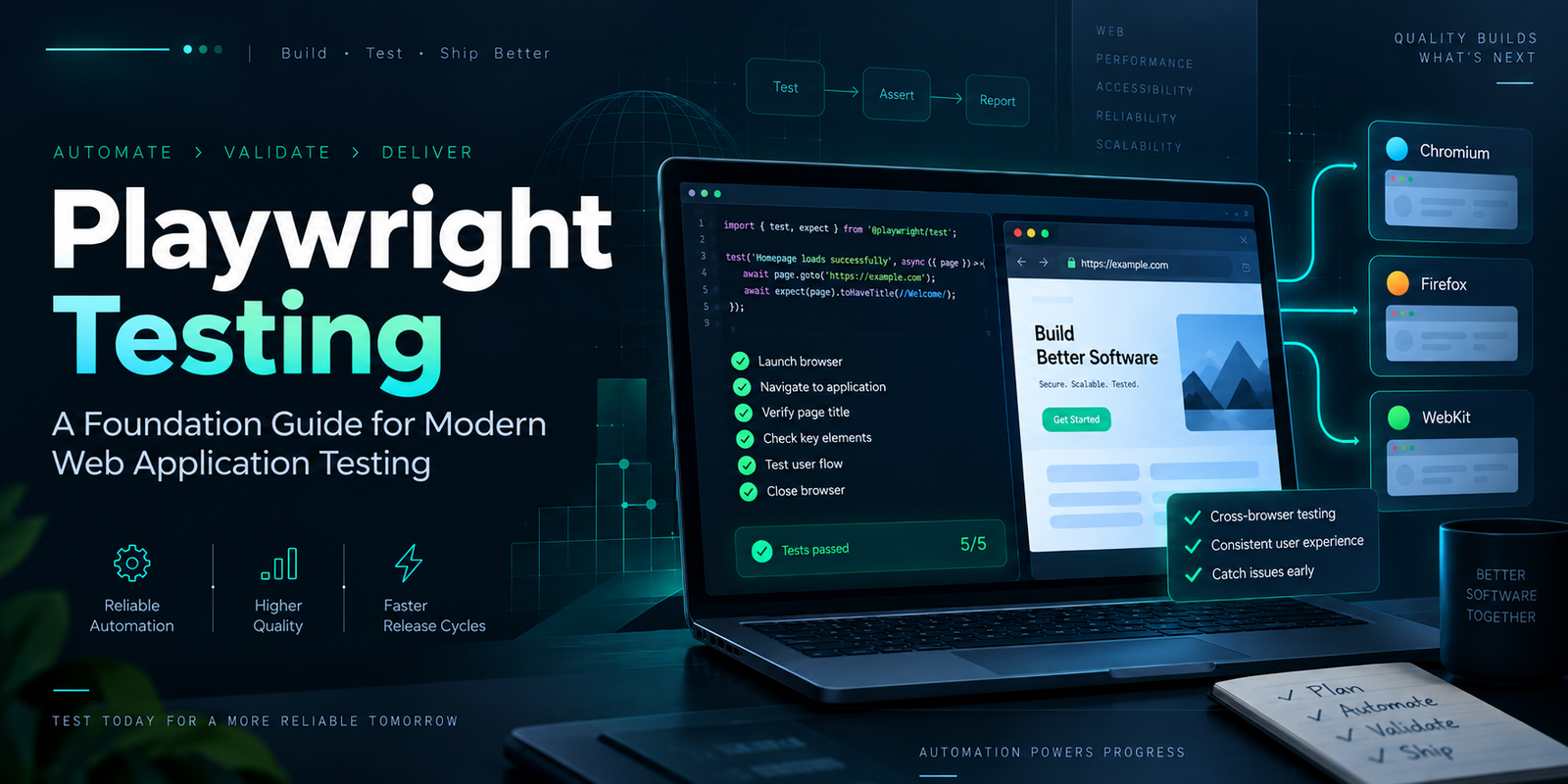
Learn what Playwright testing is, why modern QA teams use it, how testers can get started, and the major types...
7 min read · Sep 19, 2026

Learn how Kubernetes Deployments and ReplicaSets work with practical YAML, scaling, self-healing, rolling upda...
7 min read · Sep 17, 2026

Learn Kubernetes security best practices with RBAC, Secrets, ServiceAccounts, Pod securityContext, NetworkPoli...
6 min read · Sep 17, 2026Related articles
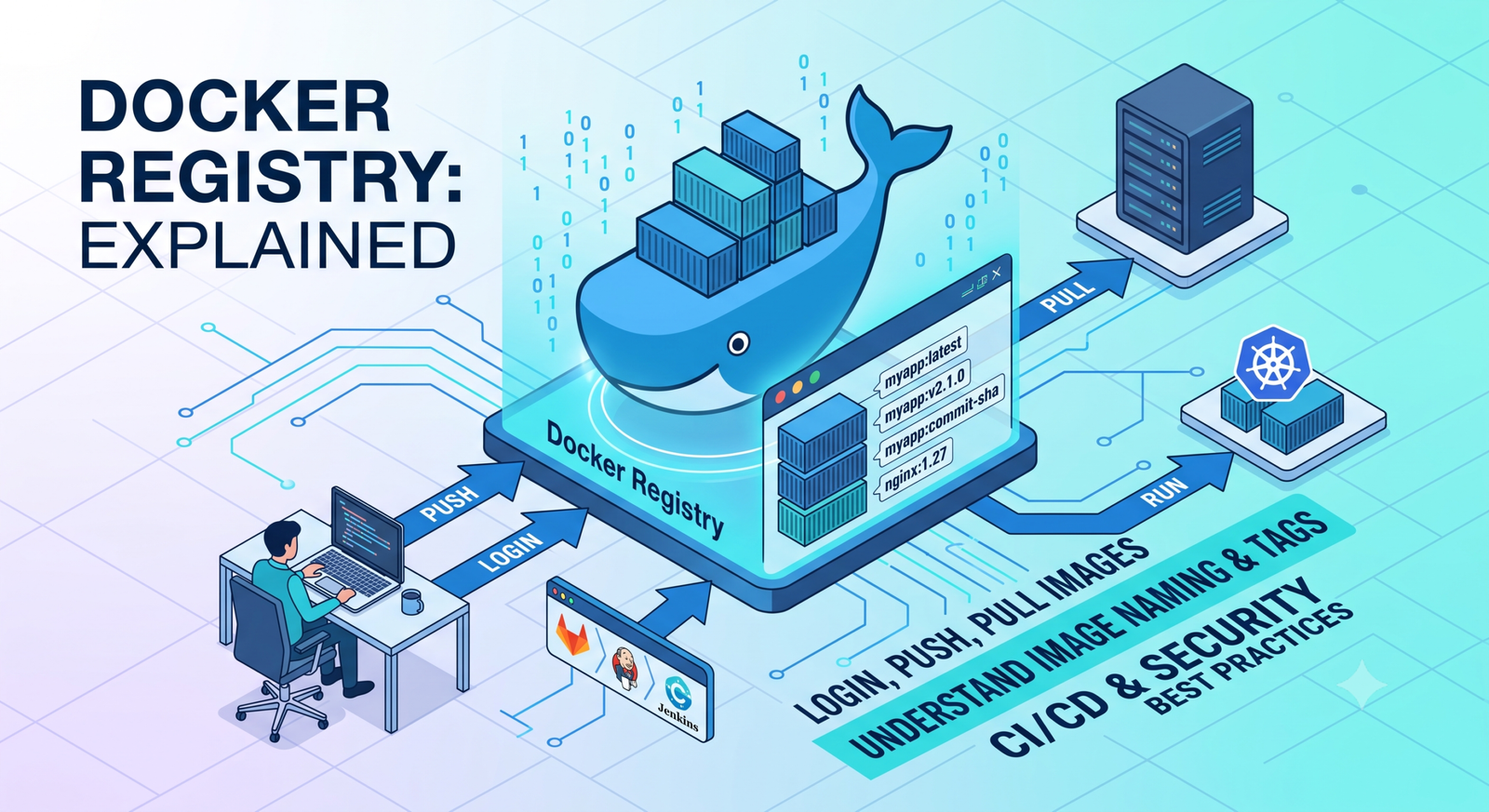
Learn Docker registries, image tags, Docker Hub, private registries, login, push, pull, naming rules, CI/CD us...
2 min read · Sep 17, 2026

Learn Docker environment variables and secrets, including docker run -e, env files, Compose environment, secre...
2 min read · Sep 17, 2026
Prepare for Docker interviews with practical questions and real-time scenarios covering images, containers, Do...
2 min read · Sep 17, 2026
Learn Docker security best practices for images, containers, users, secrets, registries, scanning, least privi...
2 min read · Sep 17, 2026Stay in the loop. Get new Melochip articles
Receive Melochip article updates when new articles are available. Explicit opt-in only.
No comments yet. Start the discussion.