
AWS AWSEC2LinuxRDPSSHWindows Server

Article & Tutorial

How to Connect to Windows and Linux Servers from macOS, Windows, Linux, and the AWS Console

Learn every practical way to connect to Windows and Linux servers from macOS, Windows, Linux, and the AWS Console using SSH, RDP, Session Manager, Fleet Manager, port forwarding, VPN, and bastion hosts.

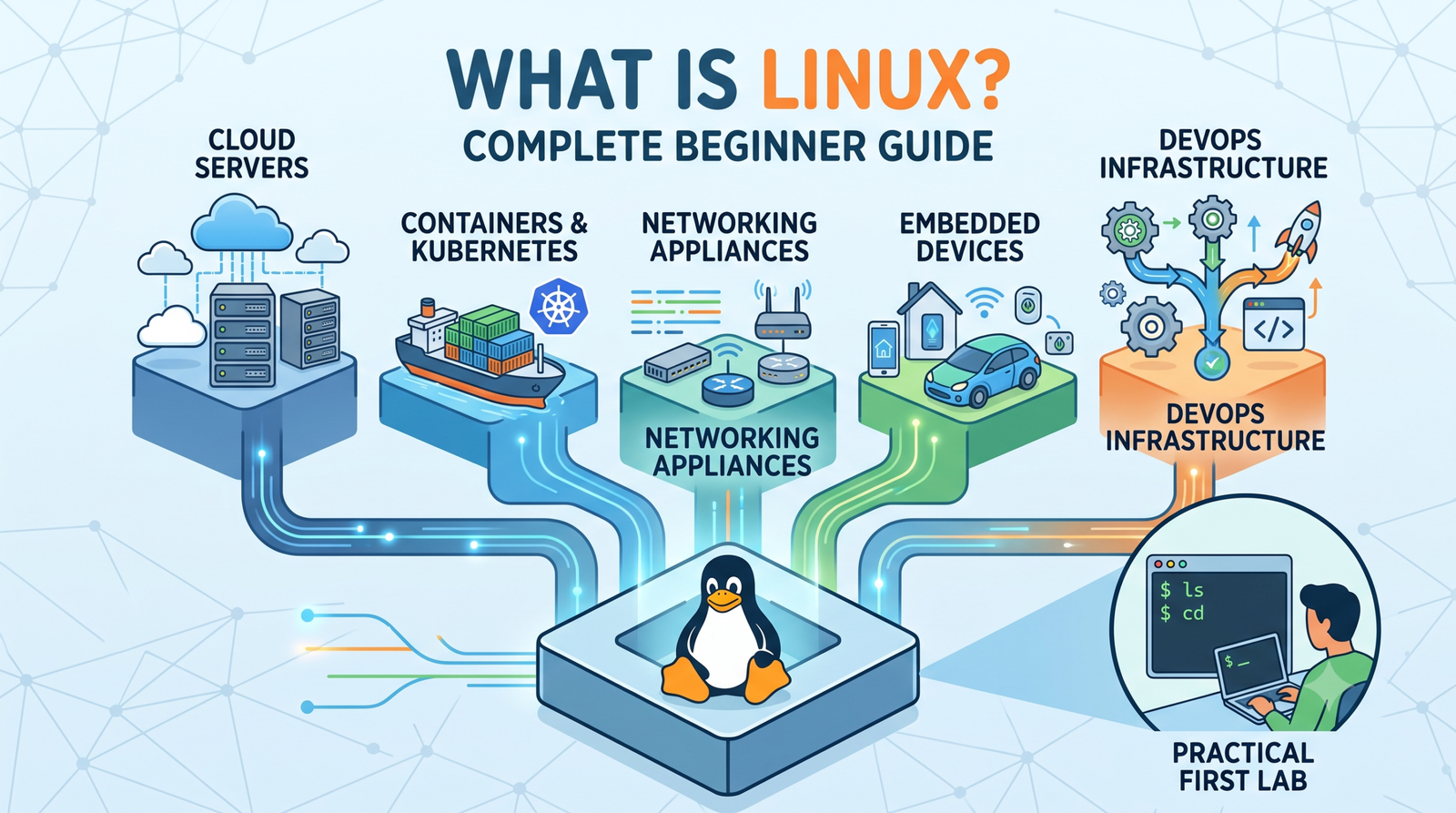
How to Connect to Windows and Linux Servers from macOS, Windows, Linux, and the AWS Console technical illustration
Contents

Introduction

Connecting to a remote Windows or Linux server can be done in several ways depending on the client operating system, the server operating system, the network design, and the security requirements. This guide explains the most common and practical methods for connecting from macOS, Windows, Linux, and directly from the AWS Management Console.

The main connection methods are:

  • SSH for Linux command-line access
  • RDP for Windows graphical desktop access
  • AWS Systems Manager Session Manager for browser or CLI access without opening inbound ports
  • AWS Fleet Manager Remote Desktop for Windows desktop access in a browser
  • SSM port forwarding for secure RDP, database, and internal application access
  • EC2 Instance Connect for browser-based or short-lived SSH access to Linux
  • Bastion or jump hosts for traditional private-network access
  • VPN or Direct Connect for private enterprise connectivity

Quick decision table

SourceTargetRecommended methodGUI or CLI
macOSLinux EC2Session Manager or SSHCLI
macOSWindows EC2Fleet Manager or RDP through SSMGUI
WindowsLinux EC2Session Manager, PowerShell SSH, or PuTTYCLI
WindowsWindows EC2Fleet Manager or Remote DesktopGUI
LinuxLinux EC2Session Manager or SSHCLI
LinuxWindows EC2Remmina, FreeRDP, or Fleet ManagerGUI
AWS ConsoleLinux EC2Session Manager or EC2 Instance ConnectBrowser shell
AWS ConsoleWindows EC2Fleet Manager Remote DesktopBrowser desktop

1. Connect from macOS to a Linux EC2 instance

Option A: AWS Systems Manager Session Manager

Session Manager is usually the safest option because it does not require a public IP address, an inbound SSH rule, or a private SSH key. The EC2 instance must have SSM Agent running, an IAM role with AmazonSSMManagedInstanceCore , and network connectivity to Systems Manager.

bash
aws sso login --profile kaushik-lab aws ssm start-session \ --target i-0123456789abcdef0 \ --profile kaushik-lab \ --region us-east-1

You can also connect from the AWS Console:

bash
EC2 → Instances → Select instance → Connect → Session Manager → Connect

Option B: Traditional SSH

Use SSH when the instance has a reachable IP address or when you are connected through a VPN, bastion, or private network.

bash
chmod 400 my-key.pem ssh -i my-key.pem ec2-user@203.0.113.10

For Ubuntu:

bash
ssh -i my-key.pem ubuntu@203.0.113.10

2. Connect from macOS to a Windows EC2 instance

Option A: Fleet Manager Remote Desktop

Nothing needs to be installed on macOS. Open a browser and navigate to:

bash
AWS Console → Systems Manager → Fleet Manager → Managed nodes → Select Windows instance → Node actions → Connect with Remote Desktop

Fleet Manager opens the Windows desktop in the browser. It avoids exposing RDP port 3389 directly to the internet.

Option B: Windows App or Microsoft Remote Desktop through SSM

For a native desktop experience, install the Microsoft Windows App on macOS, then create an SSM tunnel:

bash
aws ssm start-session \ --target i-0123456789abcdef0 \ --document-name AWS-StartPortForwardingSession \ --parameters '{"portNumber":["3389"],"localPortNumber":["13389"]}' \ --profile kaushik-lab \ --region us-east-1

Keep the terminal open and connect the RDP client to:

bash
PC name: localhost:13389 Username: Administrator Password: Windows Administrator password

Option C: Traditional RDP

This requires a public IP or private network path and an inbound security group rule for TCP 3389 from a restricted source IP.

bash
Windows App / Microsoft Remote Desktop PC name: public-or-private-ip:3389

This method is simple but less desirable when RDP is exposed directly to the internet.

3. Connect from Windows to a Linux EC2 instance

Option A: Session Manager

Install AWS CLI v2 and the Session Manager plugin, then run:

bash
aws sso login --profile kaushik-lab aws ssm start-session --target i-0123456789abcdef0 --profile kaushik-lab --region us-east-1

Option B: PowerShell SSH

Recent Windows versions include the OpenSSH client:

bash
ssh -i C:\Keys\my-key.pem ec2-user@203.0.113.10

Option C: PuTTY

PuTTY can be used for SSH access. If the private key is in PEM format, convert it to PPK using PuTTYgen before connecting.

4. Connect from Windows to a Windows EC2 instance

Option A: Fleet Manager

Open Fleet Manager from a browser and launch the Windows desktop without opening RDP to the internet.

Option B: Remote Desktop Connection

Open mstsc and enter the EC2 public IP, private IP over VPN, or an SSM-forwarded localhost port.

bash
Computer: localhost:13389

5. Connect from Linux to a Linux EC2 instance

Option A: Session Manager

bash
aws ssm start-session \ --target i-0123456789abcdef0 \ --profile kaushik-lab \ --region us-east-1

Option B: SSH

bash
chmod 400 my-key.pem ssh -i my-key.pem ec2-user@203.0.113.10

6. Connect from Linux to a Windows EC2 instance

Option A: Fleet Manager

Use any supported browser to open the Windows desktop from Fleet Manager.

Option B: Remmina or FreeRDP

Create the SSM tunnel:

bash
aws ssm start-session \ --target i-0123456789abcdef0 \ --document-name AWS-StartPortForwardingSession \ --parameters '{"portNumber":["3389"],"localPortNumber":["13389"]}' \ --profile kaushik-lab \ --region us-east-1

Then connect Remmina or FreeRDP to localhost:13389 .

7. Connect from the AWS Console

Linux: Session Manager

Did this help?

Yes No

Join the discussion

0 Comments

Ask questions, add context, or share what worked.

Sign in to join the discussion

No comments yet. Start the discussion.

More from Melochip Editorial

Related articles

Stay in the loop. Get new Melochip articles

Receive Melochip article updates when new articles are available. Explicit opt-in only.

No pre-checked boxes. Unsubscribe support is part of the subscriber foundation.