Azure Traffic Manager Explained: DNS Routing, Failover, Health Checks and Routing Methods
Learn Azure Traffic Manager with DNS-based global routing, health checks, automatic failover, six routing methods, endpoint types, nested profiles, CLI examples and troubleshooting.
Azure Traffic Manager profile showing DNS-based global routing and endpointsContents
Last reviewed: August 2026
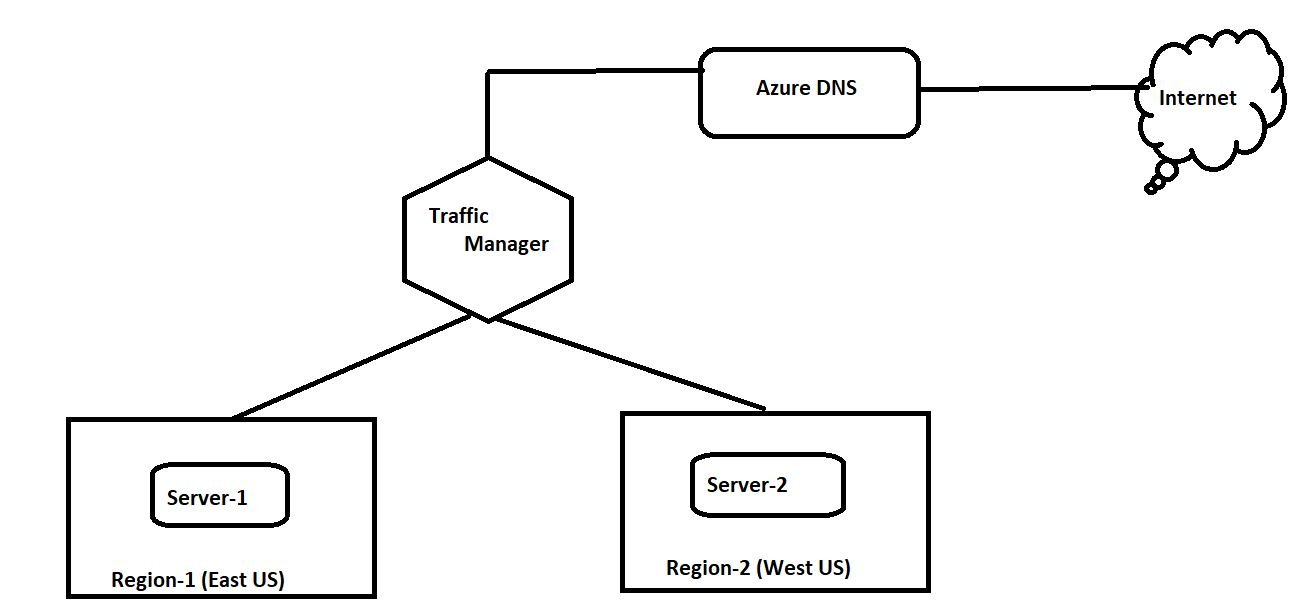
Azure Traffic Manager is a DNS-based global traffic-routing service. It does not proxy application traffic. Instead, it answers DNS queries with the endpoint that should receive new connections based on the routing method you configure and the health of each endpoint.
How Azure Traffic Manager works
When a client requests your application hostname, DNS resolution eventually reaches the Traffic Manager profile. Traffic Manager evaluates the configured routing method and endpoint health, then returns the selected endpoint in the DNS response. The client connects directly to that endpoint.
Because Traffic Manager works at the DNS layer, it affects new DNS-based connections. Existing connections are not moved when an endpoint becomes unhealthy, and DNS caching means failover speed depends partly on the configured TTL and resolver behavior.
Endpoint types
Azure endpoints: supported Azure resources such as Web Apps and Public IP resources.
External endpoints: FQDNs or IP addresses for services outside Azure, including on-premises and other clouds.
Nested endpoints: another Traffic Manager profile, used to combine routing methods.
Traffic-routing methods
Priority
Use Priority routing for active/passive failover. The highest-priority healthy endpoint receives traffic; if it becomes unhealthy, the next healthy endpoint is returned.
Weighted
Use Weighted routing to distribute DNS responses according to endpoint weights. This is useful for staged rollouts, migrations, and controlled traffic splitting.
Performance
Use Performance routing to direct users toward the endpoint expected to provide the lowest network latency from their DNS resolver's network.
Geographic
Use Geographic routing when traffic from specific geographic areas must map to specific endpoints, such as for data residency or localized experiences.
MultiValue
Use MultiValue when supported external IP-address endpoints should be returned as multiple healthy answers in a DNS response.
Subnet
Use Subnet routing when specific source IP ranges should map to specific endpoints.
Health monitoring and failover
Traffic Manager continuously probes configured endpoints. You can configure protocol, port, path, probe interval, and tolerated failures. When an endpoint is unhealthy, Traffic Manager stops returning it for new DNS decisions according to the active routing method.
DNS TTL matters
A lower TTL can help clients refresh DNS answers more frequently during failover, while a higher TTL reduces DNS query volume but may delay routing changes. Choose TTL based on the application's availability requirements and DNS-query tradeoffs.
Typical multi-region design
traffic-manager-architecture.txt
User
  |
  v
app.example.com
  |
  v
Azure Traffic Manager
  |
  +------------------+
  |                  |
East US           West Europe
Endpoint          Endpoint
  |                  |
Regional app      Regional app
Create a Traffic Manager profile in the Azure portal
Deploy or identify at least two public-facing endpoints.
Open Azure portal → Traffic Manager profiles → Create.
Provide a profile name and select a routing method.
Create the profile.
Configure DNS TTL and endpoint monitoring.
Add Azure, External, or Nested endpoints.
Verify endpoint monitor status becomes healthy.
Test the generated trafficmanager.net hostname.
Point your custom DNS name to the Traffic Manager profile using the appropriate DNS record.
Nested profiles let you combine routing strategies. A parent profile might use Performance routing across regions, while child profiles use Priority routing inside each region for regional failover.
Traffic Manager vs Azure Front Door
Feature
Traffic Manager
Azure Front Door
Routing method
DNS
Layer 7 edge proxy
Traffic proxy
No
Yes
Protocols
DNS-based steering to public endpoints
HTTP/HTTPS
WAF
No
Yes
Best fit
Global DNS failover and endpoint steering
Global web acceleration, WAF and Layer 7 routing
Traffic Manager vs Azure Load Balancer
Azure Load Balancer is a regional Layer 4 TCP/UDP service. Traffic Manager is a global DNS-based routing service. A common architecture uses Traffic Manager across regions and Standard Load Balancer inside each region.








No comments yet. Start the discussion.