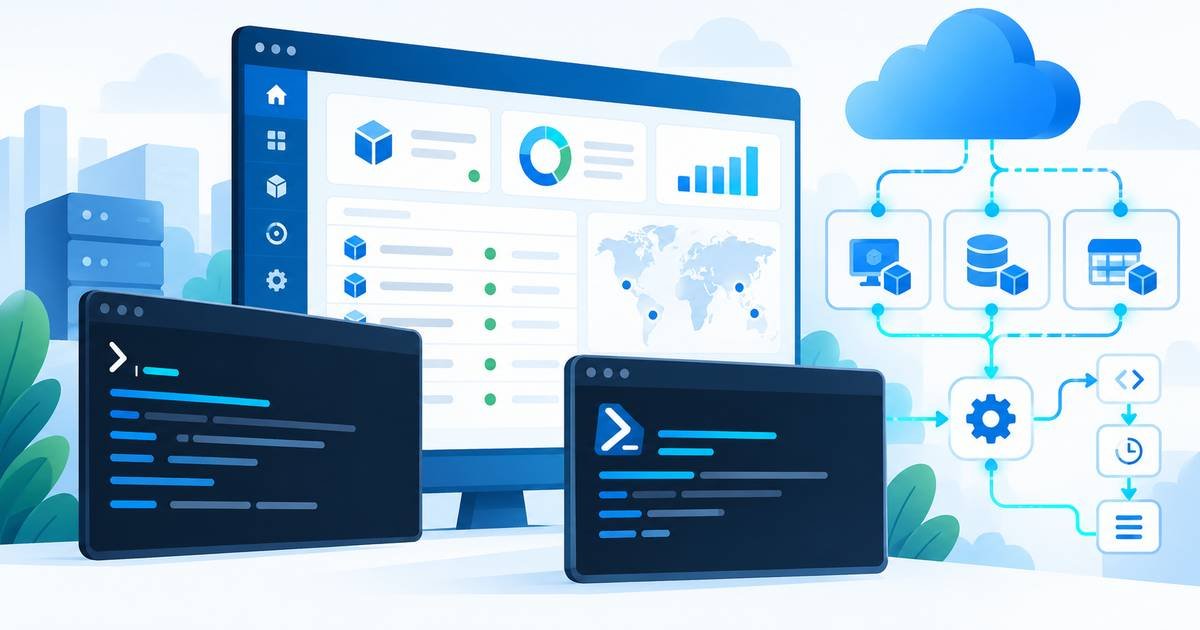
Illustration of cloud administration dashboards, command-line terminals, resource nodes, and automation flowContents
Azure can be managed through the browser, command-line tools, PowerShell, templates, SDKs and APIs. A good Azure administrator should understand when to use each tool rather than relying on the portal for every task.
This chapter introduces the Azure portal, Azure Cloud Shell, Azure CLI and Azure PowerShell with practical examples that manage the same resources in different ways.
What you will learn
When to use the Azure portal.
How Azure Cloud Shell works.
Azure CLI command structure.
Azure PowerShell and the Az modules.
How to select subscriptions and inspect context.
How to create and remove Azure resources from CLI and PowerShell.
Automation and scripting best practices.
1. Azure management tools overview
Tool
Best for
Azure portal
Discovery, visual configuration, troubleshooting and one-off tasks
Azure Cloud Shell
Browser-based command-line administration without local installation
Azure CLI
Cross-platform scripting, automation and concise commands
Azure PowerShell
PowerShell-centric administration and automation
Bicep / ARM templates
Repeatable declarative infrastructure deployment
REST API / SDK
Programmatic integration and custom applications
2. Azure portal
The Azure portal is the browser-based graphical interface for Azure. It is useful when learning service options, viewing dashboards, checking activity logs, configuring settings and troubleshooting resources.
Portal strengths
Visual resource browsing.
Integrated search.
Access to monitoring, IAM and configuration blades.
Good for discovering a service before automating it.
Portal limitation
Manual portal work is difficult to reproduce consistently at scale. If you click through the same 30-step deployment repeatedly, it should probably become a script or infrastructure-as-code deployment.
3. Azure Cloud Shell
Azure Cloud Shell is a browser-accessible shell for managing Azure. Microsoft provides Bash and PowerShell experiences and includes Azure CLI in the environment.
Cloud Shell is excellent for labs because you can start using Azure commands without installing tools locally.
Open Cloud Shell
Sign in to the Azure portal.
Select the Cloud Shell icon.
Choose Bash or PowerShell.
Confirm the active subscription before making changes.
4. Azure CLI
Azure CLI is a cross-platform command-line tool designed for Azure administration and scripting. Microsoft’s CLI examples commonly use Bash syntax.
Command structure
az <group> <command> [parameters]Examples:
az account show
az group list
az vm list
az storage account list
5. Check Azure CLI versionaz versionIf you use a local installation, keep Azure CLI updated so that current commands and API support are available.
6. Sign in with Azure CLI
az loginFor local interactive administration, this opens the supported authentication flow. Enterprise automation should not depend on a human user running az login interactively; use workload identity patterns appropriate to the automation environment.
7. Subscription context
One of the easiest ways to modify the wrong Azure environment is to forget which subscription is active.
List subscriptions:
az account list --output tableSet the active subscription:
az account set --subscription "SUBSCRIPTION_NAME_OR_ID"Confirm it:
az account show --output table8. Azure CLI output formatsAzure CLI supports useful output formats such as JSON, table and TSV.
az group list --output table
az group list --output json
az group list --query "[].name" --output tsv
The --query option is particularly valuable in scripts because it lets you select only the fields you need.
9. Create a resource group with Azure CLI
az group create \
  --name rg-cli-lab-dev \
  --location centralindia \
  --tags Environment=Dev ManagedBy=AzureCLI
Inspect it:
az group show \
  --name rg-cli-lab-dev \
  --output table
10. Azure PowerShellAzure PowerShell is Microsoft’s collection of PowerShell modules for managing Azure resources. Modern Azure PowerShell uses the Az module family.
Sign in:
Connect-AzAccountView subscriptions:
Get-AzSubscriptionSelect a subscription:
Set-AzContext -Subscription "SUBSCRIPTION_NAME_OR_ID"View current context:
Get-AzContext11. Create the same resource group with PowerShellNew-AzResourceGroup `
-Name "rg-powershell-lab-dev" `
-Location "Central India" `
-Tag @{ Environment="Dev"; ManagedBy="PowerShell" }List resource groups:
Get-AzResourceGroupRemove the test group:
Remove-AzResourceGroup `
  -Name "rg-powershell-lab-dev" `
  -Force
12. CLI vs PowerShellAzure CLIAzure PowerShellCommand style starts with azUses PowerShell verb-noun cmdletsPopular in Bash and cross-platform scriptsNatural fit for PowerShell automationOutput commonly JSON-basedReturns PowerShell objectsConcise for many cloud workflowsPowerful pipelines and object processingNeither is universally better. Choose based on team skills, existing automation and the task.
13. Same operation in three interfaces
Goal: create a resource group.
Portal
Resource groups → Create → select subscription → name → region → tags → Review + create.
Azure CLI
az group create --name rg-example-dev --location centralindiaAzure PowerShellNew-AzResourceGroup -Name "rg-example-dev" -Location "Central India"The result is an Azure Resource Manager resource group regardless of which management surface you use.
14. Make scripts safer
Explicitly select and verify the subscription.
Use variables rather than repeating names.
Use meaningful exit codes.
Validate whether resources already exist.
Avoid embedding credentials or secrets.
Use least-privileged automation identities.
Add logging for production scripts.
Use --no-wait only when asynchronous behavior is understood.
Test destructive commands in non-production first.
15. Example Bash workflow
set -euo pipefail

RG="rg-stage1-cli-lab"
LOCATION="centralindia"

az account show --output table

az group create \
  --name "$RG" \
  --location "$LOCATION" \
  --tags Environment=Learning ManagedBy=CLI

az group show --name "$RG" --output table

# Cleanup when finished
az group delete --name "$RG" --yes --no-wait
The strict shell options help catch common scripting failures, but production automation should include stronger validation, authentication design, retry/error handling and change controls.
16. Example PowerShell workflow
$ErrorActionPreference = "Stop"
$rg = "rg-stage1-ps-lab"
$location = "Central India"

Get-AzContext

New-AzResourceGroup `
  -Name $rg `
  -Location $location `
  -Tag @{ Environment="Learning"; ManagedBy="PowerShell" }

Get-AzResourceGroup -Name $rg

# Cleanup
Remove-AzResourceGroup -Name $rg -Force
17. Portal, scripts or infrastructure as code?ScenarioGood starting toolLearn a new servicePortalQuick repeatable admin taskCLI or PowerShellProduction infrastructure deploymentBicep, ARM templates or TerraformApplication integrationSDK or REST APIA mature cloud team typically uses several of these tools together.
18. Common mistakes
Running commands against the wrong subscription.
Copying CLI commands without understanding destructive flags.
Using obsolete AzureRM PowerShell examples instead of current Az cmdlets.
Hard-coding credentials in scripts.
Using the portal for repetitive production deployments.
Assuming a command succeeded without checking its output or exit status.
19. Hands-on lab
Open Azure Cloud Shell.
Run az account show.
Create rg-stage1-cli-lab with Azure CLI.
Add tags.
List resource groups in table format.
Switch Cloud Shell to PowerShell.
Run Get-AzContext and Get-AzResourceGroup.
Create a second test resource group with New-AzResourceGroup.
Remove both groups when finished.
20. Interview questions
What is Azure Cloud Shell?
How do you check the current subscription in Azure CLI?
What does az account set do?
What is the modern Azure PowerShell module family called?
How do Azure CLI and Azure PowerShell differ?
When should infrastructure as code be preferred over manual portal deployment?
Why should scripts verify subscription context?
Stage 1 complete
You now understand Azure fundamentals, global infrastructure, resource hierarchy, ARM governance, Microsoft Entra ID/RBAC and the primary Azure administration tools. Stage 2 moves into Azure networking: VNets, subnets, NSGs, routing, DNS, load balancing, private connectivity and hybrid networking.
Official references
Microsoft Learn: Get started with Azure CLI
Microsoft Learn: Get started with Azure PowerShell





No comments yet. Start the discussion.