Search articles, utilities, learning content, community Q&A, members, tags, and topics.
Start with
Search areas
Choose an area such as Articles, Utilities, Community Q&A, Learning, Members, or Tags & topics.
Article & Tutorial
AWS Systems Manager Session Manager Setup: IAM, SSM Agent, CLI and GUI Guide
Configure AWS Systems Manager Session Manager from start to finish: IAM role and policy, SSM Agent installation for Linux and Windows, AWS CLI setup on macOS, Windows and Linux, browser and GUI access, port forwarding, status checks and tro
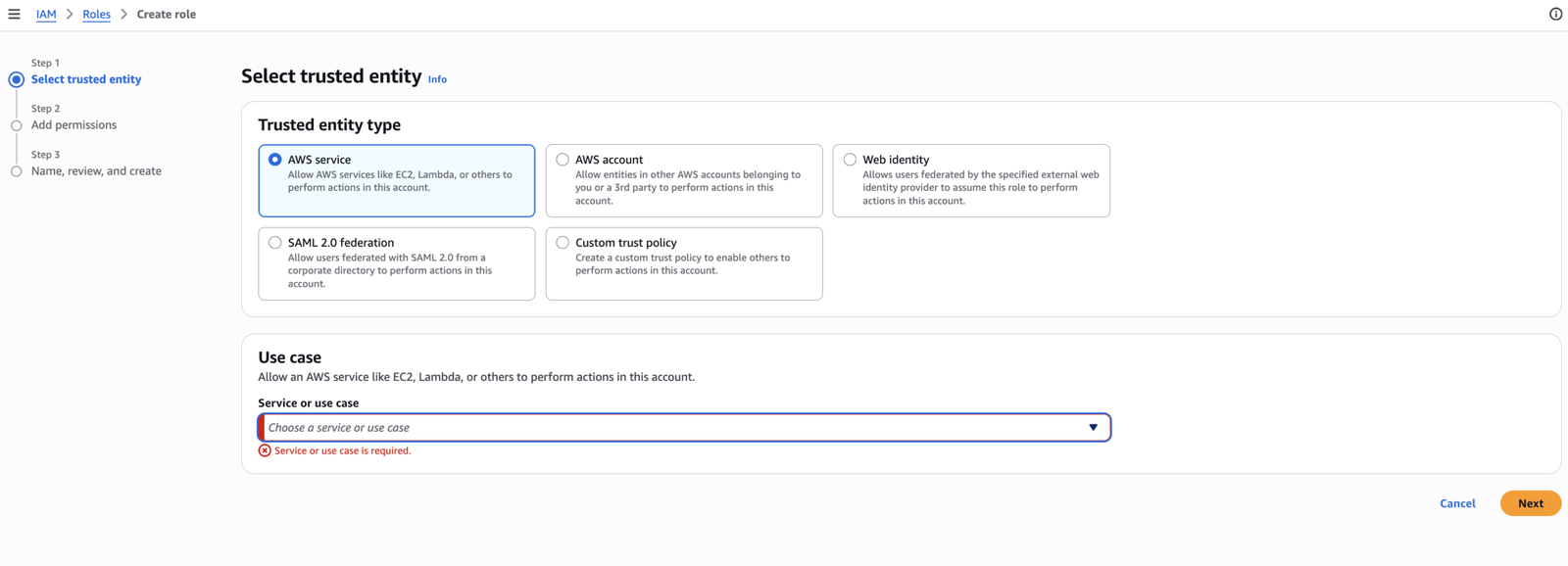
AWS IAM Create role screen with AWS service selected for an EC2 Systems Manager roleContents
AWS Systems Manager Session Manager lets administrators connect to Amazon EC2 instances without opening inbound SSH port 22 or RDP port 3389. Instead of exposing a server directly to the internet, the instance establishes an outbound connection to AWS Systems Manager through the SSM Agent.
What you will configure
Create and attach an IAM role to EC2.
Install or verify the SSM Agent on Linux and Windows.
Configure network access to Systems Manager.
Install AWS CLI and the Session Manager plugin on administrator computers.
Connect from macOS, Windows and Linux.
Use the AWS Console, Session Manager and Fleet Manager GUI.
Troubleshoot instances that do not appear as managed nodes.
1. How AWS Systems Manager Session Manager works
There are two different components, and confusing them is a common beginner mistake:
SSM Agent: Runs inside every EC2 instance that you want to manage.
Session Manager plugin: Runs on your macOS, Windows or Linux administrator computer only when you start sessions from the AWS CLI.
Traffic direction: The SSM Agent initiates an outbound HTTPS connection on port 443. You normally do not need inbound port 22 or 3389 for Session Manager.
2. Prerequisites
An AWS account and an EC2 instance.
Administrator access, or delegated permissions to create IAM roles and attach instance profiles.
SSM Agent installed and running on the target instance.
Outbound HTTPS access to Systems Manager endpoints.
A supported operating system.
For CLI access: AWS CLI and Session Manager plugin on the administrator computer.
3. Create the IAM role for EC2
The EC2 instance needs an IAM role so that SSM Agent can register with AWS Systems Manager, receive commands and create Session Manager communication channels. The standard configuration is an EC2 role with the AWS-managed policy.
Step 1: Select AWS service as the trusted entity
Open IAM in the AWS Management Console.
Choose Roles and then Create role .
Under Trusted entity type , select AWS service .
Do not select AWS account, Web identity, SAML federation or Custom trust policy for this standard EC2 setup.
The resulting trust policy allows the EC2 service principal to assume the role.
Step 2: Choose EC2 as the service and use case
In Service or use case , select EC2 .
Under the available EC2 use cases, select the first option named EC2 .
Click Next .
Step 3: Attach AmazonSSMManagedInstanceCore
Keep Use existing policy selected.
Search for .
Select the checkbox beside the policy.
Confirm that its type is shown as AWS managed .
Click Next .
This policy grants the SSM Agent the core permissions required to register the instance, read Systems Manager documents, report inventory and status, and establish Session Manager message channels. It does not automatically give human users permission to start sessions.
Step 4: Name, review and create the role
Enter a clear role name, such as .
Optionally update the description to state that the role enables EC2 instances to use AWS Systems Manager.
Under Trust policy , confirm that the service principal is .
Under Permissions policy summary , confirm that is listed.
Tags are optional, but production environments can add tags such as and .
Choose Create role .
Step 5: Attach the role to an existing EC2 instance
Open the EC2 console.
Choose Instances .
Select the EC2 instance that you want to manage with Systems Manager.
Choose Actions → Security → Modify IAM role .
In the IAM role dropdown, select .
Choose Update IAM role .
Verify that the role is attached
In the EC2 console, select the instance and open the Security tab. Confirm that the IAM role is displayed.
Open EC2 → Instances → Connect → Session Manager . The instance should become available after IAM, agent and network requirements are satisfied.
Alternatively, open AWS Systems Manager → Fleet Manager and confirm that the node shows as online.
Optional AWS CLI role creation
4. Configure network access
The instance must reach AWS Systems Manager over HTTPS port 443. A public IP is not required.
Also verify that the instance security group and network ACL allow outbound TCP 443. If you use VPC endpoints, enable private DNS and allow HTTPS from the instance security group to the endpoint security group.
5. Check whether SSM Agent is already installed
Many AWS-provided Amazon Linux, Ubuntu and Windows Server AMIs already include SSM Agent. Always check before installing another copy.
Amazon Linux, RHEL, CentOS, Rocky Linux and AlmaLinux
Ubuntu installed through Snap
Windows PowerShell
6. Install SSM Agent on Linux EC2 instances
Amazon Linux 2 and Amazon Linux 2023
Ubuntu
If the Snap package is already installed but stopped:
RHEL-compatible distributions
The exact package URL depends on the AWS Region and CPU architecture. For a 64-bit x86 instance, use the regional package published by AWS:
For ARM64/Graviton instances, replace with the architecture path documented by AWS for your distribution.
7. Install SSM Agent on Windows Server EC2
Run PowerShell as Administrator. Replace the region if necessary.
The main Windows log file is normally located at:
8. Verify the instance in AWS Systems Manager
Open the AWS Systems Manager console in the same Region as the EC2 instance.
Open Fleet Manager or Managed nodes .
Confirm that the instance appears with a status such as Online .
Open Session Manager → Start session .
Select the instance and start the session.
9. Configure the administrator computer
For browser-based access, no Session Manager plugin is required. For command-line access, install both AWS CLI and the Session Manager plugin.
macOS
First confirm the Mac architecture:
Apple silicon installation:
Intel Mac users should use the package instead of .
Windows administrator computer
Install AWS CLI v2.
Download the Windows Session Manager plugin installer from AWS.
Run the installer as Administrator.
Open a new PowerShell window.
Run to verify installation.
Linux administrator computer
For Ubuntu or Debian x86_64:
For RPM-based x86_64 Linux:
10. Configure AWS CLI credentials
Verify the active identity before connecting:
11. Connect to an EC2 instance
Standard interactive shell
The same AWS CLI command works from macOS, Windows PowerShell and Linux.
Port forwarding example
This example forwards local port 8080 to port 80 on the EC2 instance:
Open on your computer while the session remains active.
Connect to a private database through an EC2 managed node
Your database client can then connect to . The EC2 instance must be able to resolve and reach the database host, and the database security group must allow traffic from the EC2 instance.
12. Can Systems Manager be accessed through UI or GUI?
Yes. AWS Systems Manager is a managed AWS service; you do not install a separate “SSM Manager server.” You configure it in the AWS account and Region where your instances run.
13. Minimum IAM permissions for administrators
The EC2 instance role and the administrator permissions are different. The instance role uses . Human users also need permission to list instances, start sessions and terminate their own sessions.
For production, restrict the instance ARNs or use resource tags, AWS IAM Identity Center permission sets and separate roles for read-only, operations and administrative access.
14. Troubleshooting checklist
Linux service and logs
Windows service and logs
Confirm EC2 role credentials
Common causes when an instance is not online
The IAM role is not attached to the EC2 instance.
The role does not contain .
SSM Agent is not installed, not running or outdated.
The AWS Console is open in the wrong Region.
Outbound HTTPS is blocked.
Private DNS or VPC endpoint security groups are misconfigured.
The operating system clock is significantly incorrect.
A proxy is required but not configured for SSM Agent.
The local AWS CLI profile lacks .
The Session Manager plugin is missing from the administrator computer.
15. Security best practices
Remove public SSH and RDP access where operationally possible.
Use IAM Identity Center and short-lived credentials instead of long-lived access keys.
Restrict sessions by instance tags, account, Region and approved SSM documents.
Enable Session Manager logging to CloudWatch Logs or Amazon S3.
Encrypt logs and session data with AWS KMS.
Use VPC interface endpoints for isolated production networks.
Keep SSM Agent updated with Systems Manager Distributor, State Manager or your patch process.
Review CloudTrail events for , and .
16. Final architecture summary
On every EC2 instance: Install and run SSM Agent, attach an EC2 IAM role, and allow outbound HTTPS.
On administrator computers: Install AWS CLI and the Session Manager plugin only when CLI sessions are required.
In AWS: Use Systems Manager Session Manager for terminal sessions and Fleet Manager for fleet visibility and Windows browser-based GUI access.
Inbound access: Session Manager itself does not require inbound SSH or RDP rules.




No comments yet. Start the discussion.