Azure Availability SetsAzureVirtual Machines

Article & Tutorial

Add an Existing Azure VM to an Availability Set: What Is Possible and Safer Alternatives

Learn why an existing Azure VM cannot be directly attached to an Availability Set, how the recreate process works, what causes downtime, how to preserve managed disks and networking, and when to migrate to VM Scale Sets Flexible instead.

Azure virtual machine availability set configuration for VM recreation planning
Contents

Last reviewed: August 2026

You cannot directly attach an already-created Azure virtual machine to an Availability Set in place. Azure requires the Availability Set association to be defined when the VM resource is created.

If you must move an existing VM into an Availability Set, the VM resource has to be deleted and recreated while preserving the managed OS disk, data disks and required networking configuration. This causes downtime and should be planned carefully.

Do not use the old AzureRM module

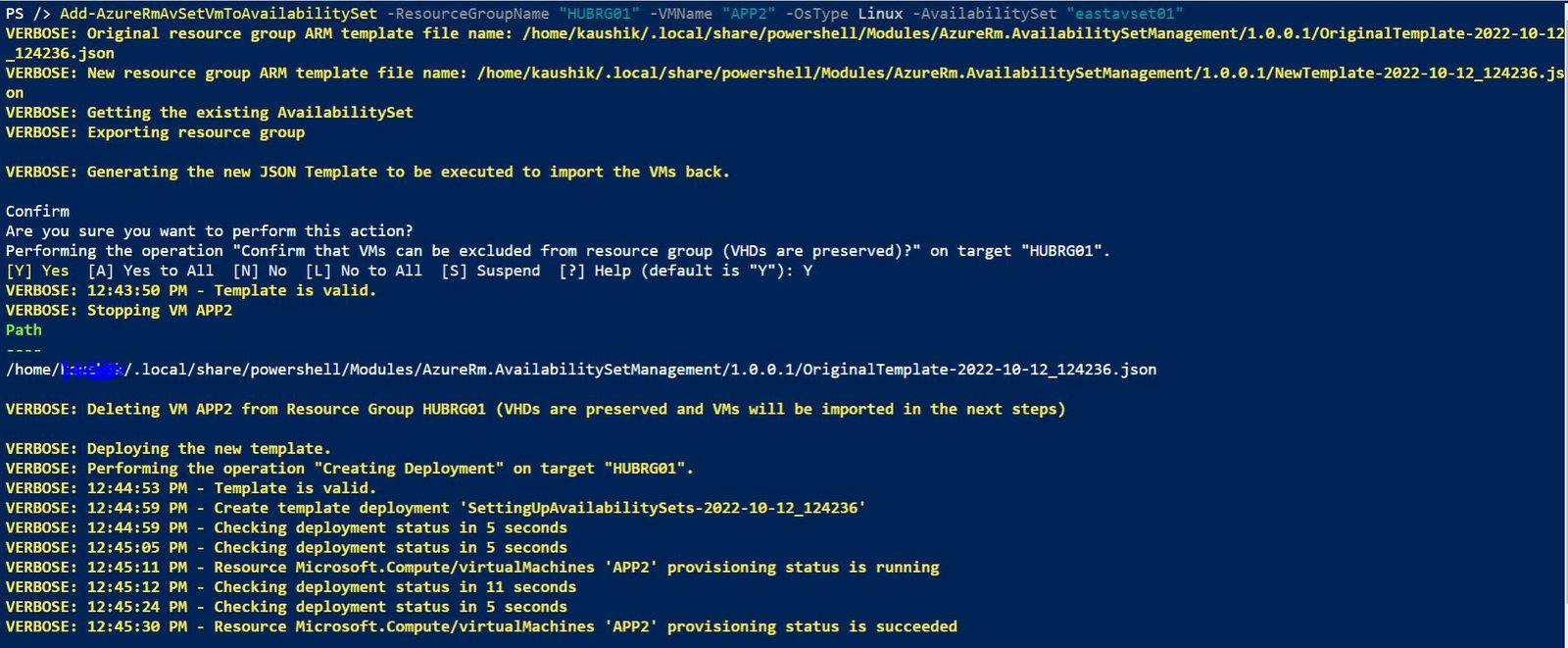
Older scripts based on AzureRM or community helper modules should not be used for new automation. Use the current Az PowerShell module, Azure CLI, ARM/Bicep, Terraform, or the Azure portal.

Why the VM must be recreated

The Availability Set is part of the VM's placement configuration. Azure does not support changing this association as a simple in-place property update after the VM is created.

High-level migration process

  1. Document the VM configuration: size, OS type, NICs, disks, extensions, tags and dependencies.
  2. Take a backup or snapshot as required by your change policy.
  3. Confirm the target Availability Set exists in the same region.
  4. Stop the workload gracefully.
  5. Delete the VM resource without deleting the managed OS/data disks.
  6. Recreate the VM using the existing managed OS disk and attach it to the target Availability Set.
  7. Reattach data disks and the required NIC configuration.
  8. Start the VM and validate boot, networking, application health and monitoring.

PowerShell example structure

Microsoft's current documentation uses the Az PowerShell module. The general flow is:

$resourceGroup = "HUBRG01" $vmName = "APP1" $availabilitySetName = "eastavset01" $originalVM = Get-AzVM \ -ResourceGroupName $resourceGroup \ -Name $vmName $availabilitySet = Get-AzAvailabilitySet \ -ResourceGroupName $resourceGroup \ -Name $availabilitySetName # Planned downtime begins here. Remove-AzVM \ -ResourceGroupName $resourceGroup \ -Name $vmName $newVM = New-AzVMConfig \ -VMName $originalVM.Name \ -VMSize $originalVM.HardwareProfile.VmSize \ -AvailabilitySetId $availabilitySet.IdYou must then rebuild the VM configuration by attaching the existing managed OS disk, required data disks, NICs and OS-specific settings before calling New-AzVM. Do not run a partial script against production without validating every dependency first.

Downtime warning

This is not a zero-downtime change for the VM being recreated. For a production application, use redundant application instances and a load balancer so one instance can remain available while the other is changed.

Preserve these resources carefully

  • Managed OS disk
  • Managed data disks
  • Network interface configuration
  • Private IP requirements
  • Public IP resource if applicable
  • NSG associations
  • Managed identity configuration
  • VM extensions
  • Backup and monitoring configuration
  • Application-specific secrets and dependencies

A better modern option: VM Scale Sets Flexible

For many older Availability Set environments, it may be better to migrate the workload to a Virtual Machine Scale Set with Flexible orchestration instead of recreating standalone VMs into another Availability Set.

Azure now provides a guided Availability Set to Flexible VM Scale Set migration experience. Supported migrations can validate compatibility, create or select a target scale set, move VMs and optionally assign Availability Zones.

Availability Set migration to VMSS Flexible

A current Azure CLI flow includes validation, starting migration, moving VMs, restarting them and cleaning up the empty Availability Set.

az vm availability-set start-migration-to-vmss \ --resource-group "HUBRG01" \ --name "eastavset01" \ --vmss-flexible-id "/subscriptions//resourceGroups/HUBRG01/providers/Microsoft.Compute/virtualMachineScaleSets/"For supported scenarios, the Azure portal provides a guided migration experience. If you need to move VMs one at a time to preserve application availability, use Azure CLI, PowerShell or REST instead of the portal's all-at-once flow.

When to choose each approach

RequirementRecommended approach
Legacy VM must remain in Availability Set architectureRecreate VM using preserved managed disks
Modernize HA architectureEvaluate VMSS Flexible migration
Need datacenter-level isolationEvaluate Availability Zones
Need autoscaling and centralized VM lifecycleVM Scale Sets Flexible

Common mistakes

  • Deleting the OS disk together with the VM.
  • Using obsolete AzureRM modules.
  • Forgetting NIC, NSG, managed identity or extension configuration.
  • Assuming the change is zero downtime.
  • Recreating a VM without a tested rollback plan.
  • Using an Availability Set by default when Zones or Flexible Scale Sets better match the requirement.

Official references

  • Change a VM Availability Set using Azure PowerShell
  • Migrate Availability Sets to VM Scale Sets
  • Start-AzAvailabilitySetMigration

Related Melochip article: Azure Availability Sets Explained.

Did this help?

Yes No

Join the discussion

0 Comments

Ask questions, add context, or share what worked.

Sign in to join the discussion

No comments yet. Start the discussion.

More from Melochip Editorial

Related articles

Stay in the loop. Get new Melochip articles

Receive Melochip article updates when new articles are available. Explicit opt-in only.

No pre-checked boxes. Unsubscribe support is part of the subscriber foundation.