



Linux Filesystem Explained Understand how Linux organizes configuration, logs, applications, devices, user data and mounted storage. This guide explains directories, paths, file types, inodes, mounts and practical troubleshooting commands. Learning path: This is Chapter 3 of the Linux System Administration Learning Path. Read Install Ubuntu Server first if you need a practice system. Linux uses one filesystem tree Linux presents files and storage under a single hierarchy beginning at / , called the root directory. Additional disks, partitions, network shares and temporary filesystems are attached to this tree at mount points. / → /etc /var /home /usr /opt /tmp /mnt Important Linux directories Directory Purpose Typical examples / Top of the filesystem hierarchy Contains every directory and mount point /etc System and application configuration /etc/ssh , /etc/systemd , /etc/netplan /var Variable data that changes while the system runs Logs, caches, queues, databases and application state /home Home directories for regular users /home/kaushik /root Home directory for the root user Root-only scripts and configuration /usr Installed programs, libraries and shared read-only data /usr/bin , /usr/lib , /usr/share /bin , /sbin Essential commands; often linked into /usr on modern systems ls , cp , administration tools /opt Optional or third-party application packages Enterprise tools installed outside the package manager /tmp Temporary files May be cleared automatically /run Runtime state created since boot PID files, sockets and transient service data /dev Device files Disks, terminals and pseudo-devices /proc Virtual process and kernel information /proc/cpuinfo , /proc/meminfo /sys Kernel device and driver information Hardware and subsystem attributes /boot Bootloader, kernel and initramfs files Kernel images and GRUB configuration /mnt , /media Manual and removable-media mount points External disks and temporary mounts Absolute and relative paths Absolute path Starts with / and identifies the same location regardless of your current directory. /var/log/nginx/access.log Relative path Starts from the current working directory. ../config/app.conf pwd cd /var/log cd .. cd ~ cd - Hidden files and special path symbols . means the current directory. .. means the parent directory. ~ expands to the current user’s home directory. Names beginning with a dot are hidden by default, such as .ssh . ls -la find ~ -maxdepth 1 -name '.*' Linux file types Linux treats many resources as files. Use ls -l to inspect the first character of the mode field. Symbol Type Example - Regular file Text, binary or archive d Directory /etc l Symbolic link A path pointing to another path b Block device Disk device c Character device Terminal or serial device s Socket Local service communication p Named pipe FIFO data channel ls -l /dev/null file /bin/ls stat /etc/passwd Inodes explained An inode stores metadata such as ownership, permissions, timestamps and disk-block references. The filename is stored in a directory entry that points to the inode. ls -li file.txt stat file.txt df -i Important: A filesystem can report “No space left on device” even when data blocks remain if all inodes have been consumed by millions of small files. Hard links and symbolic links Link type Behavior Hard link Another filename pointing to the same inode; normally cannot cross filesystems. Symbolic link A separate file containing a path to another file or directory; may cross filesystems. ln report.txt report-hardlink.txt ln -s /var/log/app.log app-log-link ls -li report.txt report-hardlink.txt readlink -f app-log-link Mounts and filesystems A mount attaches a filesystem to a directory. The directory becomes the mount point while the filesystem is mounted. findmnt lsblk -f df -hT mount | column -t Temporary manual mount sudo mkdir -p /mnt/data sudo mount /dev/sdb1 /mnt/data findmnt /mnt/data sudo umount /mnt/data Data safety: Verify the device name and filesystem before mounting, formatting or changing partitions. Commands such as mkfs destroy existing filesystem data. Persistent mounts with /etc/fstab /etc/fstab describes filesystems that should be mounted automatically. sudo blkid sudo nano /etc/fstab sudo mount -a findmnt --verify Prefer UUIDs instead of changing device names such as /dev/sdb1 . UUID=EXAMPLE-UUID /data ext4 defaults,nofail 0 2 Safe workflow: Back up /etc/fstab , add the entry, run sudo mount -a , and verify before rebooting. Disk usage versus directory usage df -hT du -sh /var/* 2>/dev/null sudo du -xhd1 / | sort -h sudo find /var -xdev -type f -size +1G -ls df reports filesystem usage. du calculates space used by visible directory entries. They can disagree when a deleted file remains open by a process. Deleted files still using space sudo lsof +L1 sudo lsof | grep '(deleted)' Restart or safely reload the owning service after reviewing the impact. Do not truncate unknown file descriptors blindly. Filesystem permissions and ownership ls -ld /var/log namei -l /var/log/app/service.log stat /var/log/app/service.log A process needs permission on the target file and execute permission on every parent directory in the path. Case sensitivity and filename safety Report.txt and report.txt are different names. Avoid spaces and unusual control characters in automation paths. Quote variables and filenames in shell scripts. touch 'monthly report.txt' ls -l -- 'monthly report.txt' rm -- 'monthly report.txt' Common filesystem troubleshooting workflow Identify the exact path and filesystem. Check free blocks and inodes. Inspect mount options and read-only state. Check ownership and every parent directory permission. Review kernel and system logs. Look for deleted-open files and abnormal growth. Back up data before repair operations. findmnt /problem/path df -hT /problem/path df -i /problem/path namei -l /problem/path mount | grep ' ro[,)]' journalctl -k -b sudo lsof +L1 Common errors Symptom Likely cause Check Permission denied File or parent-directory permissions namei -l , ls -ld , ACLs and service user No space left on device Blocks or inodes exhausted df -h and df -i Read-only filesystem Mount option or filesystem error findmnt , kernel logs and storage health Target is busy during unmount Process working inside mount fuser -vm /mnt/data and lsof System enters emergency mode Invalid /etc/fstab entry Console logs, UUID and mount options df and du disagree Deleted-open file or another mount lsof +L1 and findmnt Best practices Keep configuration in /etc and application data in appropriate persistent locations. Do not store important data only in /tmp . Use UUIDs in /etc/fstab . Monitor both disk blocks and inodes. Separate rapidly growing logs or application data where operationally justified. Back up before filesystem repair, resizing or formatting. Use standard directories instead of inventing confusing custom layouts. Hands-on practice lab mkdir -p ~/linux-fs-lab/{config,logs,data} printf 'mode=development\n' > ~/linux-fs-lab/config/app.conf ln -s ~/linux-fs-lab/config/app.conf ~/linux-fs-lab/current-config find ~/linux-fs-lab -maxdepth 2 -ls stat ~/linux-fs-lab/config/app.conf du -sh ~/linux-fs-lab readlink -f ~/linux-fs-lab/current-config Frequently asked questions Is the root directory the same as the root user’s home? No. / is the top of the filesystem. /root is the root user’s home directory. Why is /proc not using normal disk space? /proc is a virtual filesystem generated by the kernel to expose process and system information. Can Linux mount multiple filesystems? Yes. Local partitions, logical volumes, network shares and temporary filesystems can all appear within the same directory tree. Related Melochip guides Linux System Administration Learning Path Install Ubuntu Server Configure Static IP with Netplan Docker Volumes Explained Official references Filesystem Hierarchy Standard Linux path resolution manual
Join the discussion
0 CommentsAsk questions, add context, or share what worked.
More from Melochip Editorial

Learn what Playwright testing is, why modern QA teams use it, how testers can get started, and the major types...
7 min read · Sep 19, 2026
Learn how Kubernetes Deployments and ReplicaSets work with practical YAML, scaling, self-healing, rolling upda...
7 min read · Sep 17, 2026
Learn Kubernetes security best practices with RBAC, Secrets, ServiceAccounts, Pod securityContext, NetworkPoli...
6 min read · Sep 17, 2026Related articles

Learn Linux from the ground up with simple explanations of the kernel, distributions, filesystem, commands, pe...
4 min read · Updated Oct 1, 2026
Learn how Kubernetes Deployments and ReplicaSets work with practical YAML, scaling, self-healing, rolling upda...
7 min read · Sep 17, 2026
Learn Kubernetes monitoring and logs with kubectl logs, events, metrics-server, top commands, Prometheus, Graf...
5 min read · Sep 17, 2026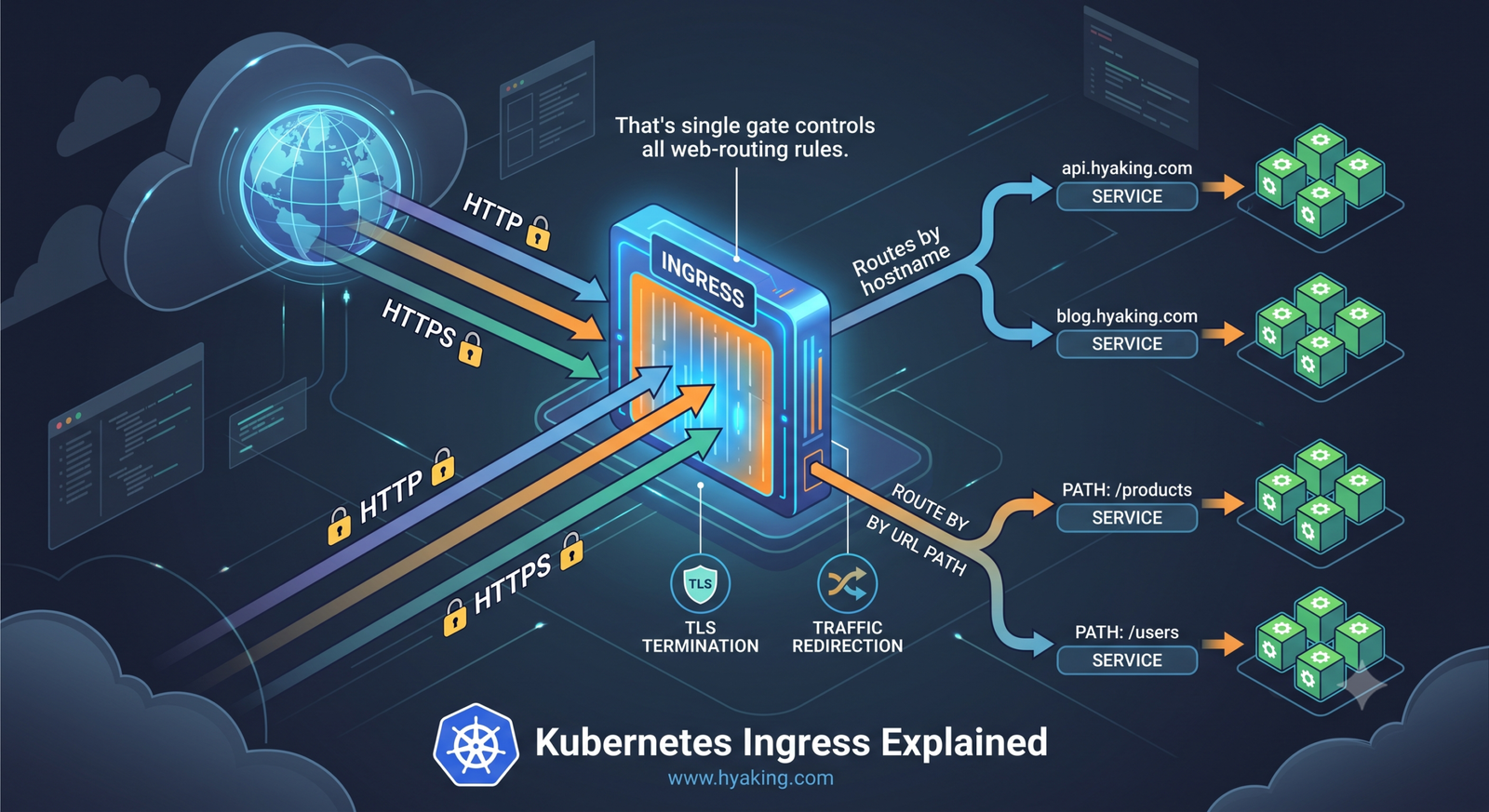
Learn Kubernetes Ingress with controllers, IngressClass, host and path routing, TLS, DNS, annotations, redirec...
8 min read · Sep 17, 2026
No comments yet. Start the discussion.