



Join the discussion
0 CommentsAsk questions, add context, or share what worked.
More from Melochip Editorial
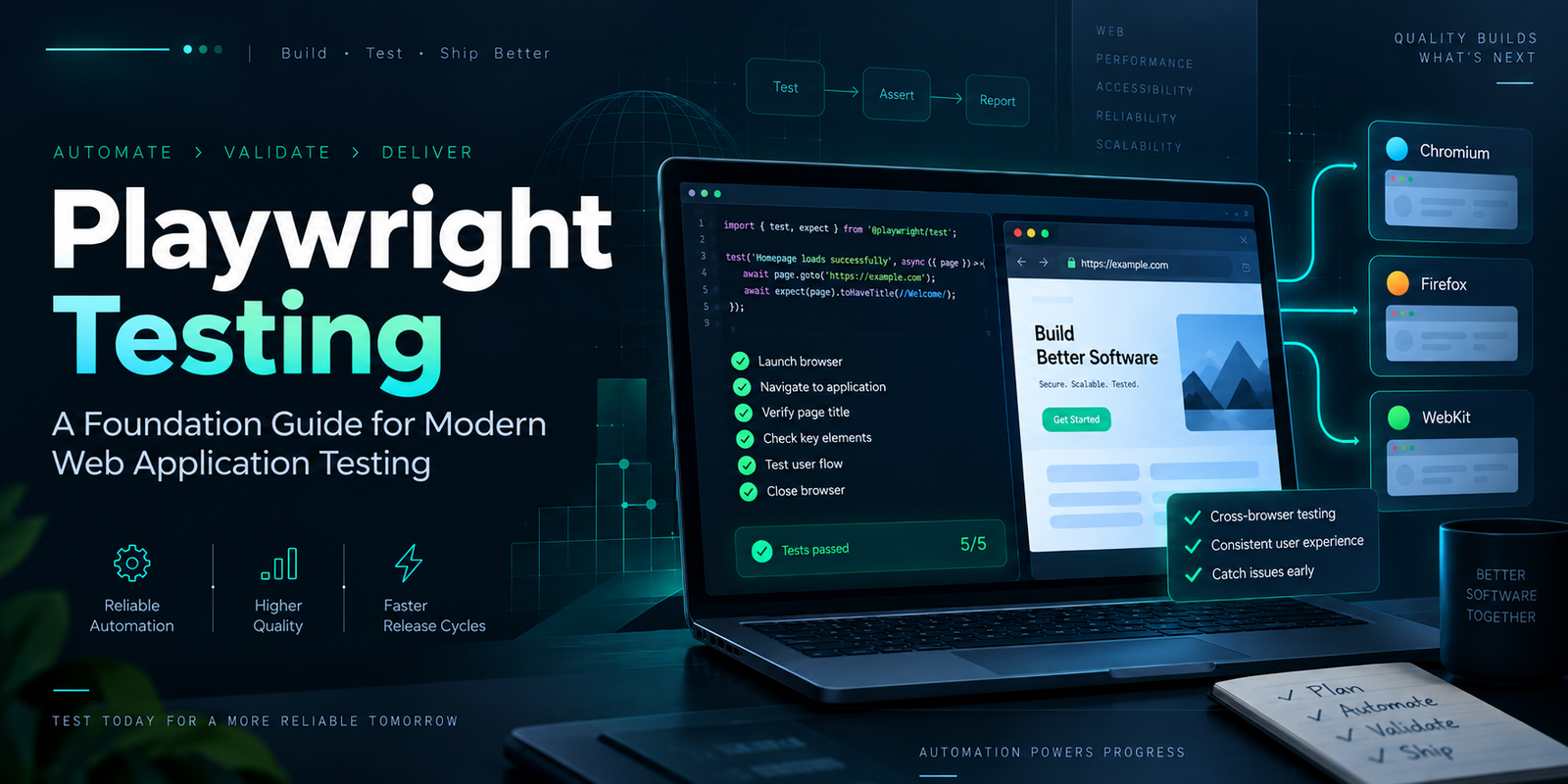
Playwright Testing: A Foundation Guide for Modern Web Application Testing
Learn what Playwright testing is, why modern QA teams use it, how testers can get started, and the major types...
7 min read · Sep 19, 2026
Kubernetes Deployments and ReplicaSets Explained: Scaling, Rolling Updates and Rollback
Learn how Kubernetes Deployments and ReplicaSets work with practical YAML, scaling, self-healing, rolling upda...
7 min read · Sep 17, 2026
Kubernetes Security Best Practices: RBAC, Secrets, Pods, Images and Network Policies
Learn Kubernetes security best practices with RBAC, Secrets, ServiceAccounts, Pod securityContext, NetworkPoli...
6 min read · Sep 17, 2026Related articles
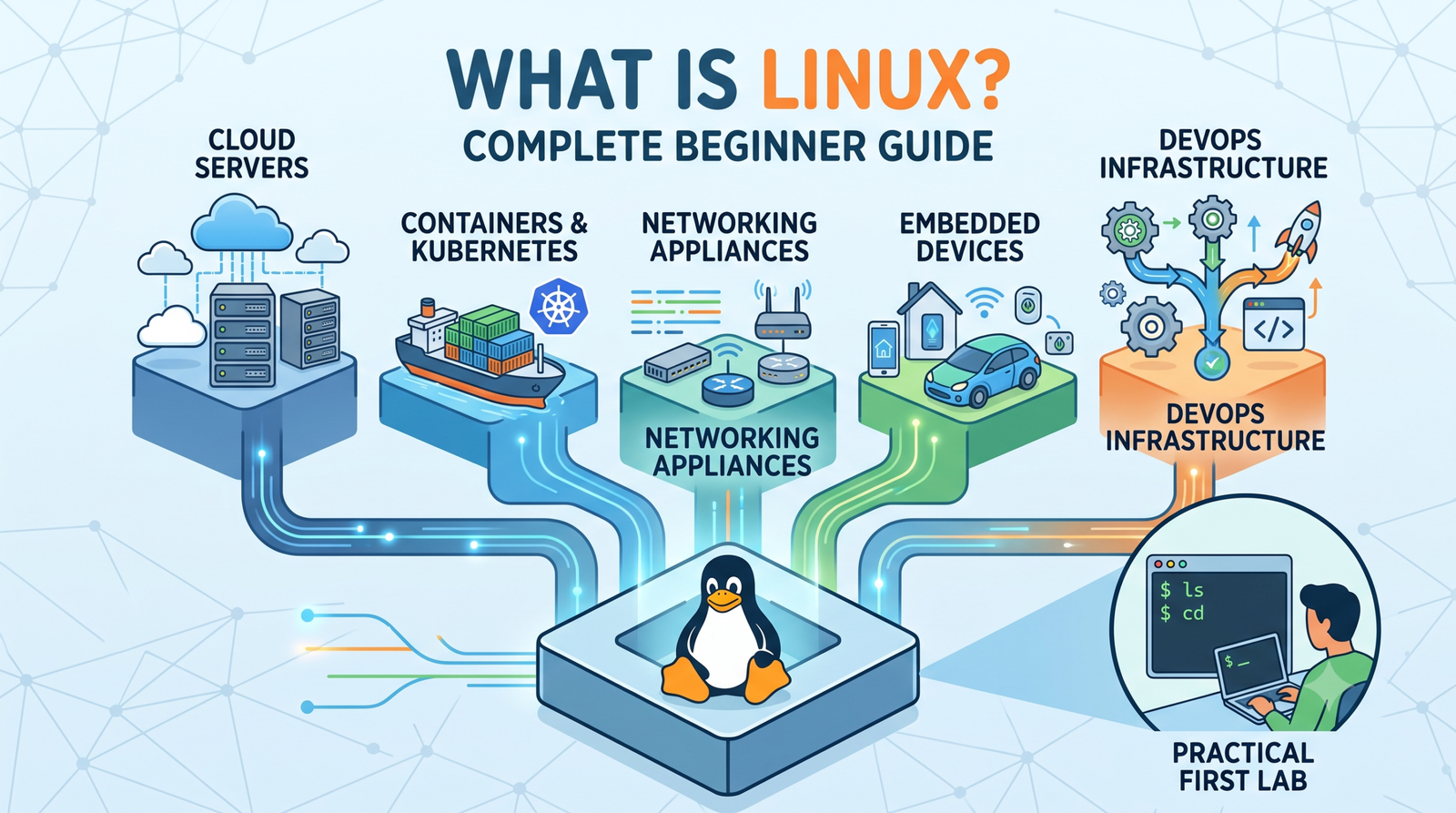
What Is Linux? Complete Beginner Guide to Architecture, Commands and DevOps
Learn Linux from the ground up with simple explanations of the kernel, distributions, filesystem, commands, pe...
4 min read · Updated Oct 1, 2026
Playwright Testing: A Foundation Guide for Modern Web Application Testing
Learn what Playwright testing is, why modern QA teams use it, how testers can get started, and the major types...
7 min read · Sep 19, 2026
Kubernetes Deployments and ReplicaSets Explained: Scaling, Rolling Updates and Rollback
Learn how Kubernetes Deployments and ReplicaSets work with practical YAML, scaling, self-healing, rolling upda...
7 min read · Sep 17, 2026
Kubernetes Security Best Practices: RBAC, Secrets, Pods, Images and Network Policies
Learn Kubernetes security best practices with RBAC, Secrets, ServiceAccounts, Pod securityContext, NetworkPoli...
6 min read · Sep 17, 2026
No comments yet. Start the discussion.